Start Here
Mahjong 4 Friends Documentation
Complete product documentation for Mahjong 4 Friends, including setup, gameplay, scoring, shortcuts, alternative rules, and troubleshooting.
Platforms
Mahjong4Friends.com website:
- Works on any operating system or device
- Supports Chrome, Firefox, Opera, Edge, and Safari.
- Can be added to your home screen.
- Warning ⚠️: If you play Mahjong 4 Friends in incognito/private browsing mode, you might not be able to resume play if your browser crashes.
Mahjong 4 Friends Android App:
- The Mahjong 4 Friends Android App is identical to the website.
- Android users can use either the website or the app - the experience is nearly identical.
Mahjong 4 Friends iOS App (App Store):
- The Mahjong 4 Friends iOS App is very similar to the website; however, it offers improved performance and iOS usability features.
- iOS users can use the website, however the app is recommended for the best experience.
Tutorial Videos
American Mahjong Quickstart video - for experienced players
Chinese/Hong Kong/British Quickstart video - a Play-Along for experience players
Chinese/Hong Kong/British Play-Along (video) - a Play-Along for new players. This tutorial introduces Chinese/Hong Kong/British/Japanese styles of mahjong in a Play Along format on Mahjong 4 Friends.
Using Mahjong 4 Friends
Mahjong 4 Friends allows you to play games of mahjong with your friends across town or around the world. If you don’t have four players available, automated bots are supported to play one or more hands in your game.
Support is provided for both American Mahjong (with a NMJL or Marvelous card) and traditional 14 tile mahjong hands with four sets of 3 (pongs or chows) or 4 (kongs) and a pair including Chinese, Hong Kong, and British. An override feature is provided to go mahjong with any special hands not currently supported. Automatic scoring is provided, and all hands are exposed if you choose to self-score with a different algorithm or use an older American mahjong card.
Gameplay is free with all styles. If you would like to play ad-free, subscriptions are available for purchase in the app.
If you have questions or suggestions, please visit the Mahjong 4 Friends Facebook page or use Contact support.
Starting a game
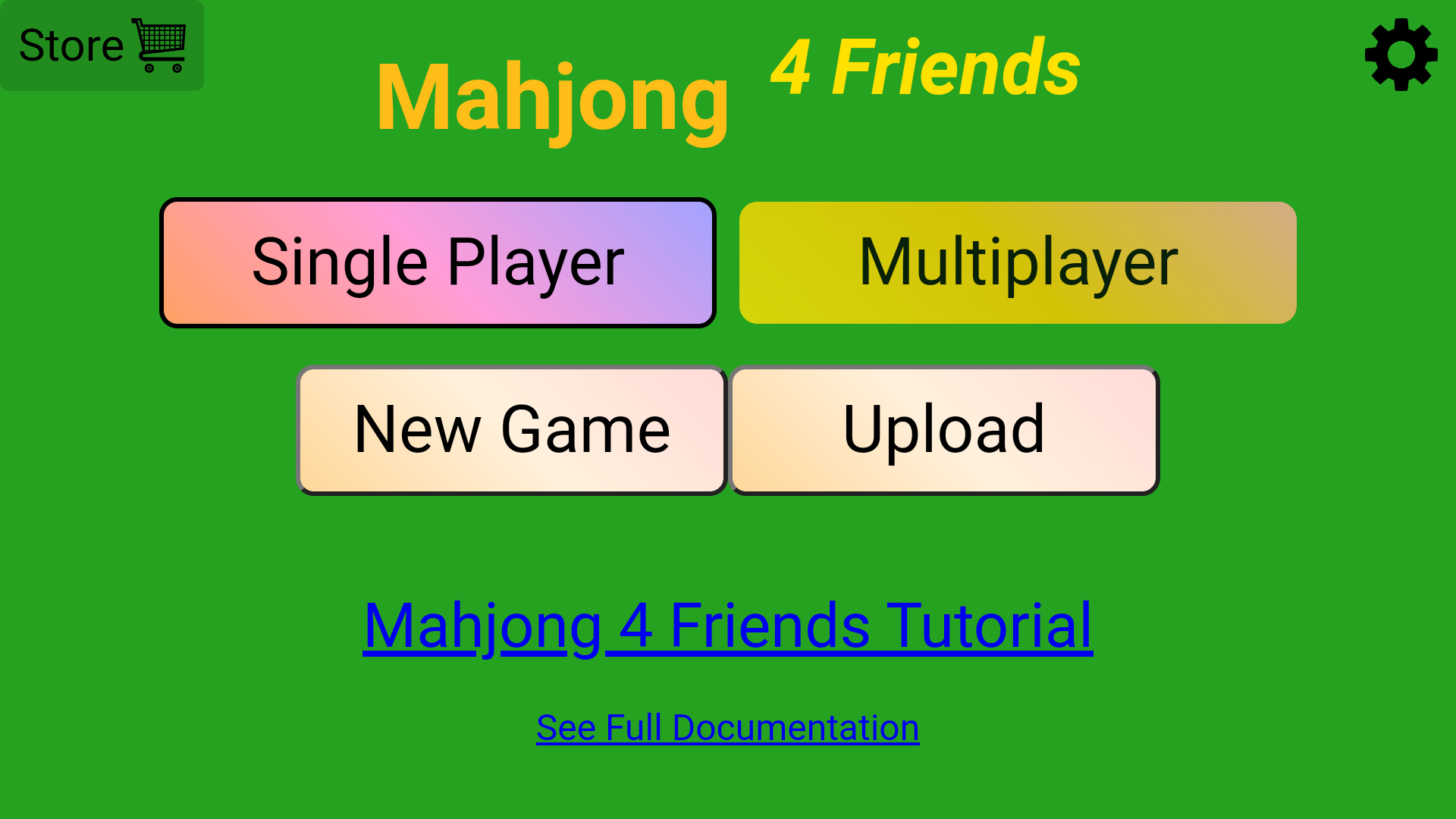
You can play Mahjong 4 Friends Single Player against 3 bots or Multiplayer with three friends and/or bots.
Single Player
If you want to practice or try your skill and luck against 3 bots, you can use the Single Player option. This provides you a game room and 3 bots ready to play with just one-click. Single Player games are offline and do not require internet access.
- Go to Mahjong4Friends.com (or open the Mahjong 4 Friends app)
- Click “Single Player”
- Click “New Game”
Multiplayer
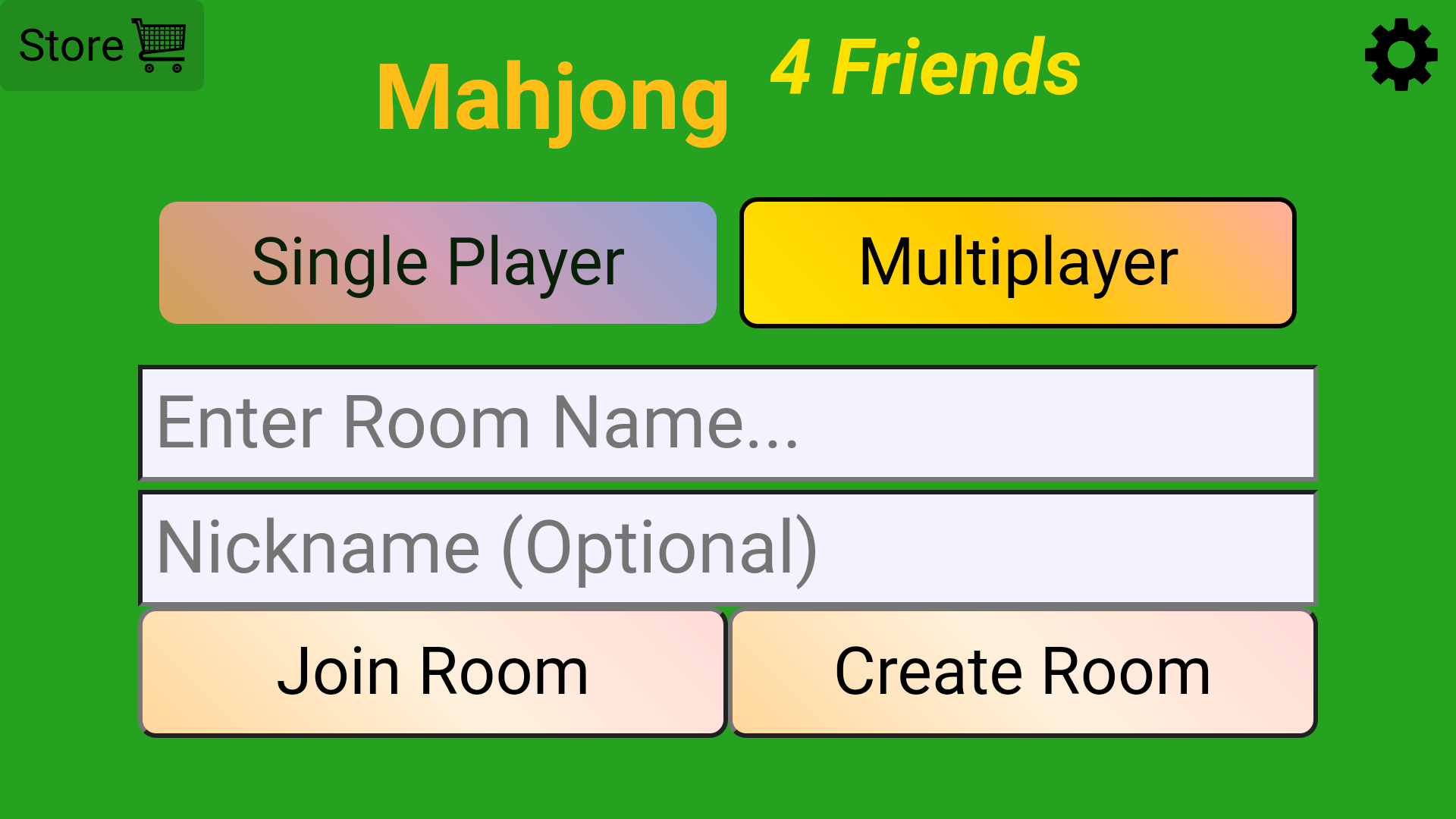
To start a Multiplayer Mahjong 4 Friends game, you will create a game room, invite your friends to join (or use one or more bots), and then start a game.
Creating the game room
- Go to Mahjong4Friends.com (or open the Mahjong 4 Friends app)
- Select “Multiplayer”
- Enter a Room Name of your choice
- Enter your name, or the nickname you want to use during the game
- Click “Create Room”
- After you click Create Game, your game room is created, and you can invite friends to join by providing them the url (Mahjong4Friends.com) and the Room Name or send them the link and/or QR code located under the Game Settings:
Joining a game room
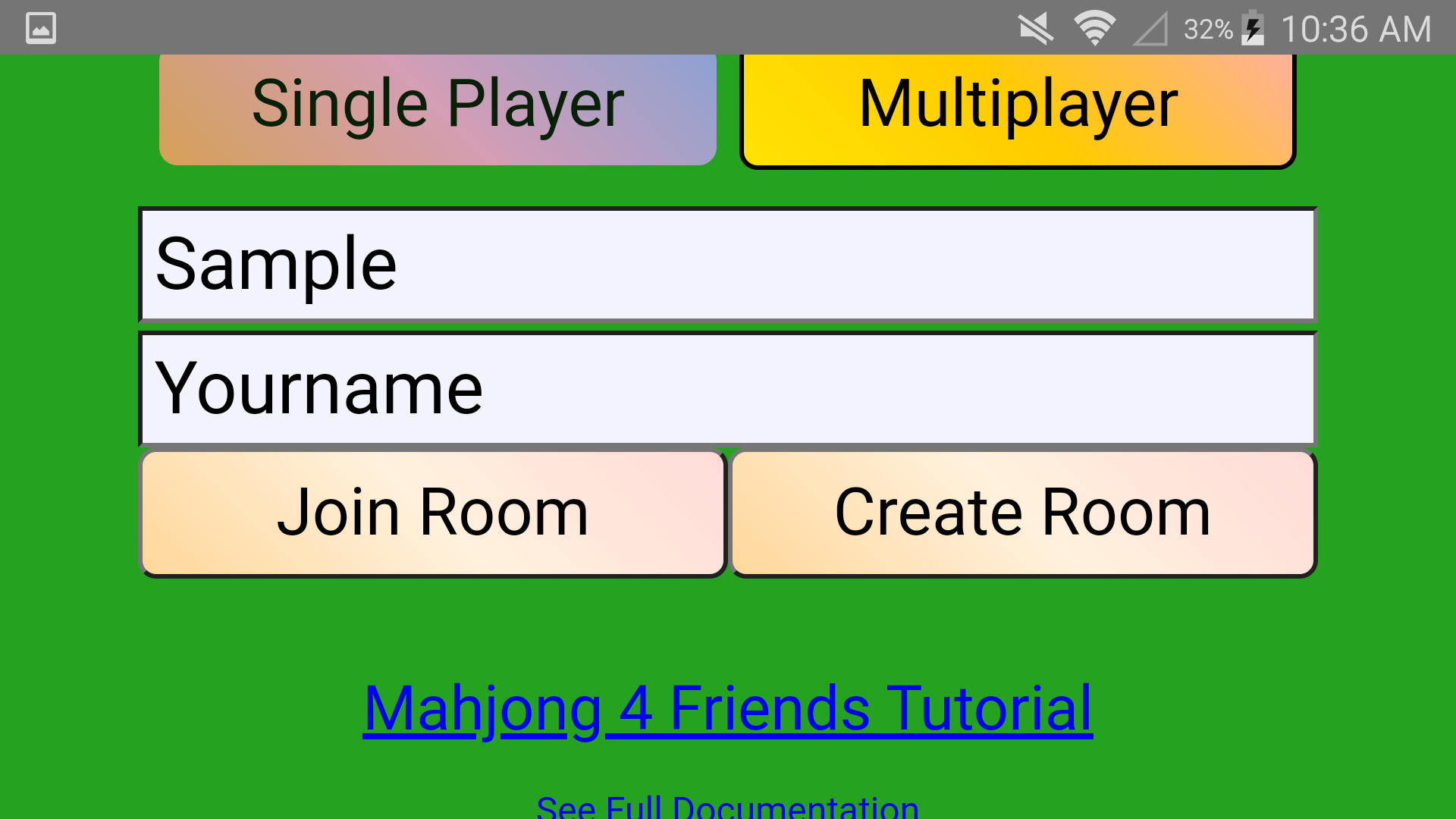
- Go to Mahjong4Friends.com (Or open the Mahjong 4 Friends App)
- Click “Multiplayer”
- Enter the Room Name provided
- Enter your name, or the nickname you want to use during the game
- Click “Join Room”
Settings (variants, configuration options, etc)
Style of mahjong
The most important setting is your choice of Chinese/Hong Kong/British style, American mahjong, or Panama Rules. Chinese style includes the support for 4 sets and a pair (pongs, kongs, chows, 1 pair or special hands) and one (optional) charleston round. American mahjong requires a card and adds jokers and flower placement, and one-three charleston rounds. Panama Rules are variant of Chinese style with specific settings (optional 1 round charleston, 1 chow limit, etc)

- Click the Mahjong Variant pulldown and select the desired Variant.
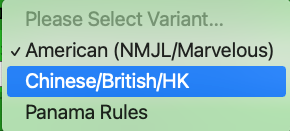
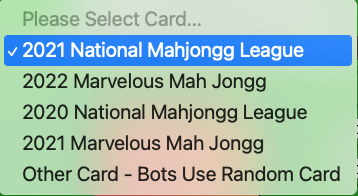
- When you select the American (NMJL/Big/Marvelous), also click the Select Card pulldown menu to select the card for scoring, Suggested Hands, and for the bots to play.
General Settings
Click the Gear Icon in the upper right corner of the room

On the General Settings Pop-up, make your selections.
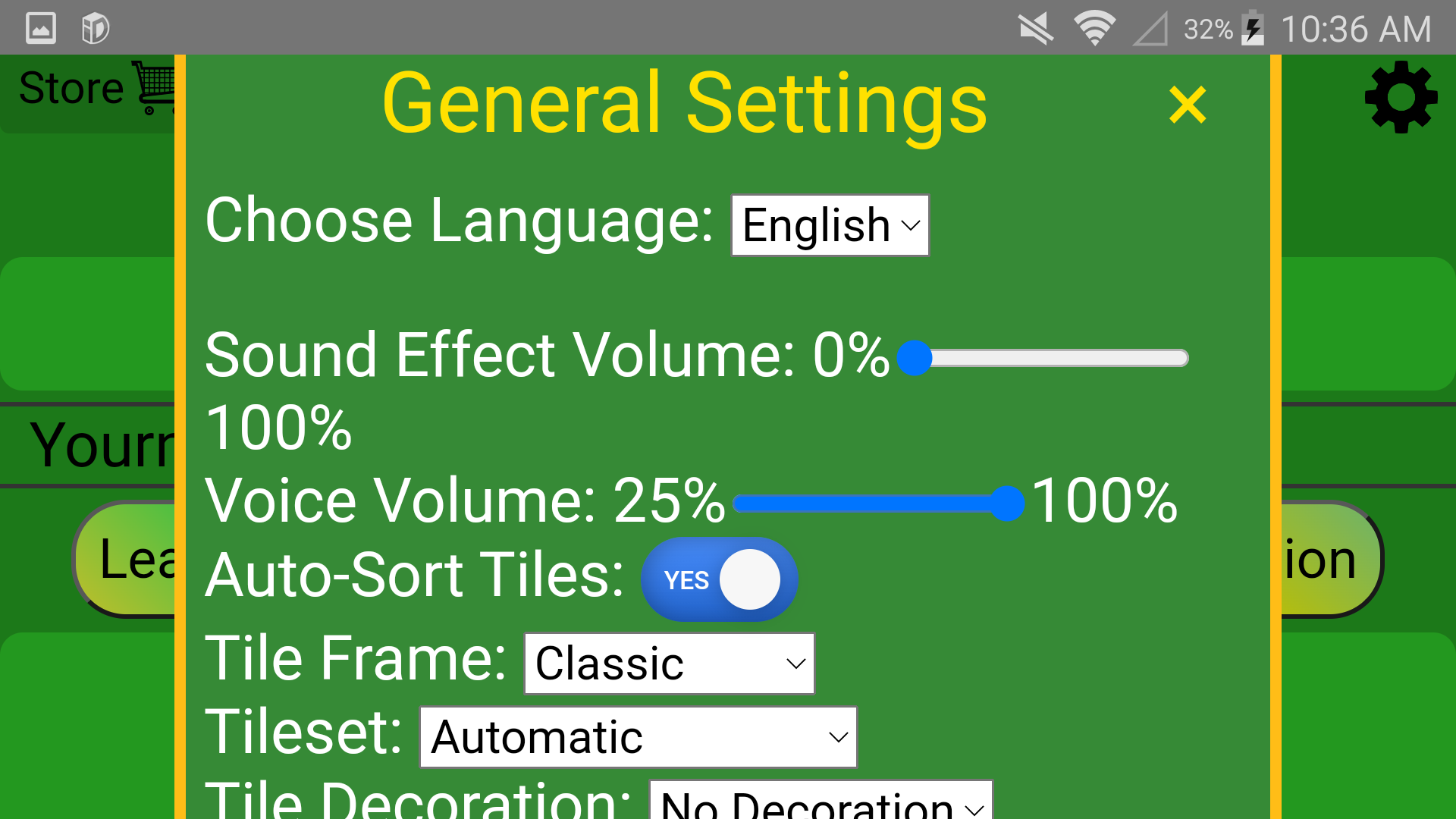
- Choose Language - the default is English. Chinese is also available from the pulldown.
- Sound Effects Volume - the default is muted. Slide the volume for sounds effects when tiles are thrown or players go mahjong. Note: ad volume is tied to your sound effect setting.
- Voice Volume: use the slider to control the voice volume for the bots.
- Auto-Sort tiles - the default is Yes. With the default, tiles are automatically placed in your hand corresponding to number and suit. Click the radio button to No to self-sort. This option of “No” auto-sort is particularly useful for Marvelous Mah Jongg.
- Tile Frame: the default is Classic. Larger tiles are selectable.
- Tileset: three tile sets are available. Default of “automatic” selects “Classic” for Chinese variants and “American” for American variants.
- Classic - Chinese export style (white dragons are blank tiles, chinese character dragons, numbers on all tiles)
- Classic unlabeled - Chinese style, no numbers on the tiles.
- American Mahjong (blue outline on the white dragons/soaps, red and green dragons, tiles are number).
- Tile Decoration: the default is the traditional bone colored tile back. Selectable decorations include a Rabbit for 2023, Fireworks, etc.

Game Configuration (American)
- Click the “Configuration” button next to “Start Game” for the Game Configuration.

- Select the Bot Difficulty using the sliding scale. The “Superhuman” bots play more combinations on the cards, whereas the easier settings don’t play as many combinations and are deliberately less optimized. Of course, luck is going to influence the bots also.
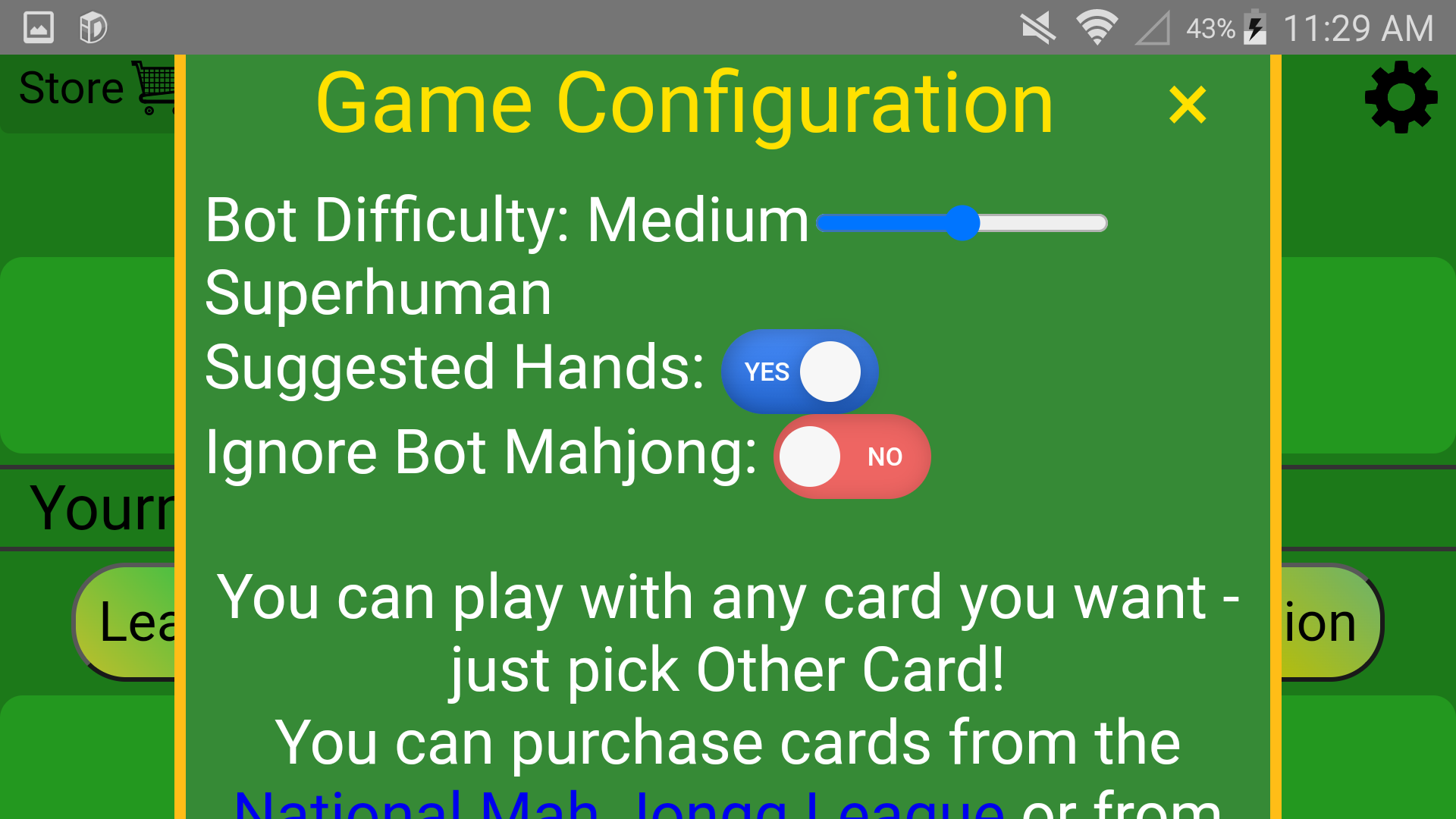
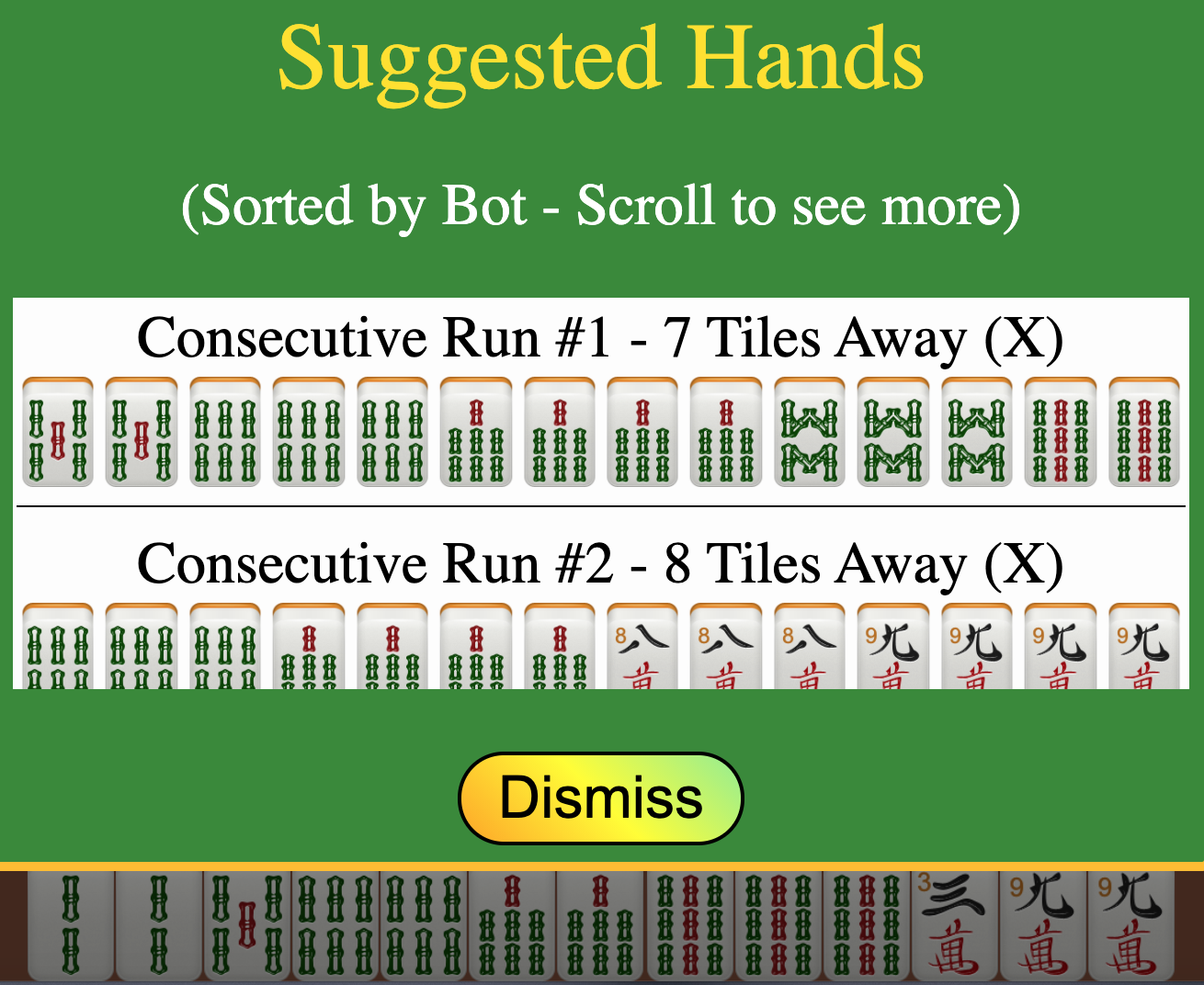
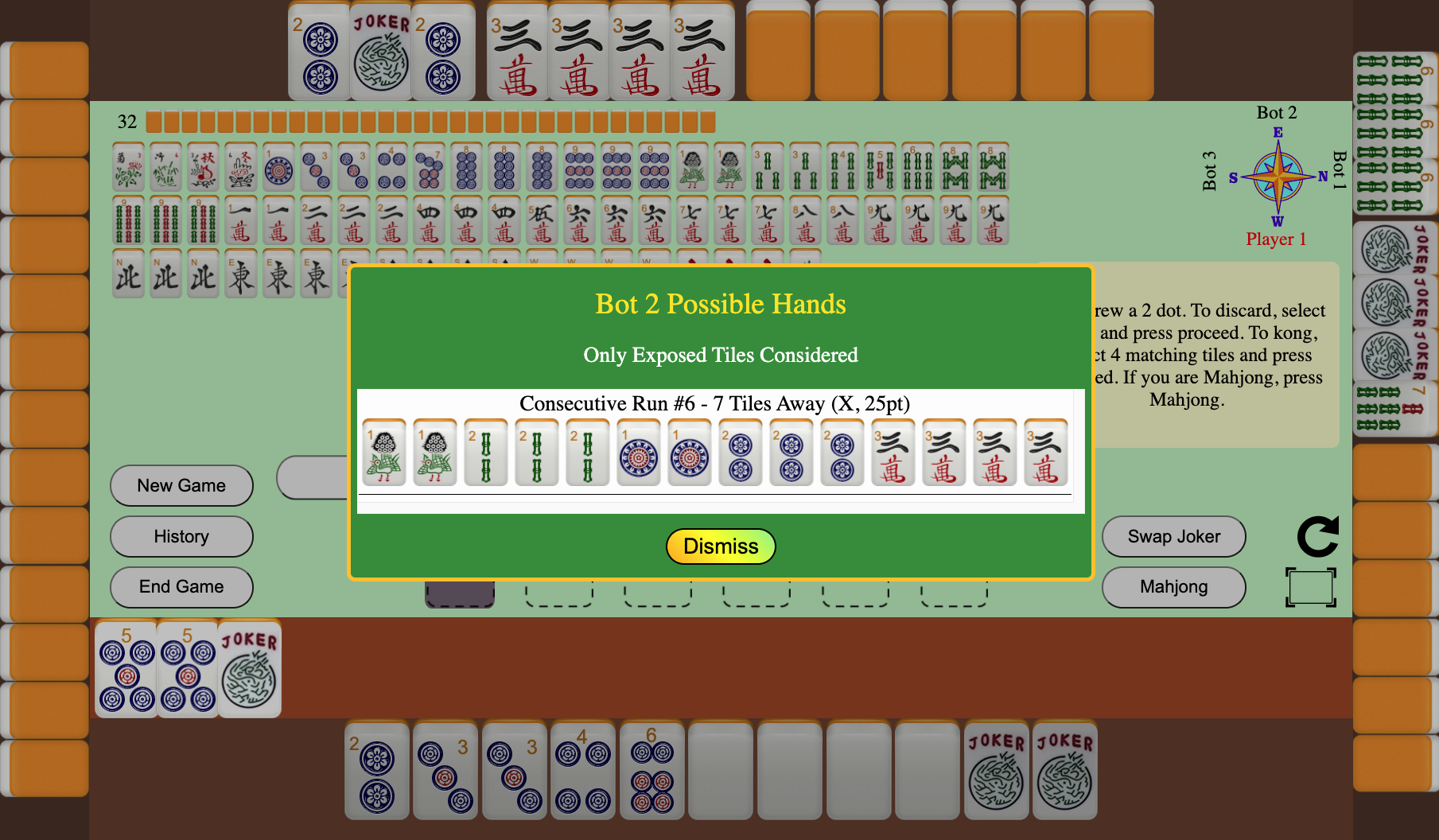
- American Mahjong includes both Suggested Hands based on your tiles and Possible Hands for your opponents based on their exposed tiles. The Suggested Hands button displays your potential hands and how many tiles you are away from each. Possible Hands that your opponents may be playing are available by clicking on your opponent(s) tiles. This is the same analysis that bots use and does not consider discarded tiles. If you want to ensure your game is played without anyone using these hints, select the box to Disable the Hints.
- Allow Play after Bot Mahjong - this checkbox allows you to continue playing after a Bot goes Mahjong. Select this box if you want an opportunity to complete a hand after a bot has won.
Game settings (Chinese)
The host has few optional settings for the game Chinese/Hong Kong/British style.
Click the Configuration button next to the Start Game button for a pop-up window with Chinese Game Settings.
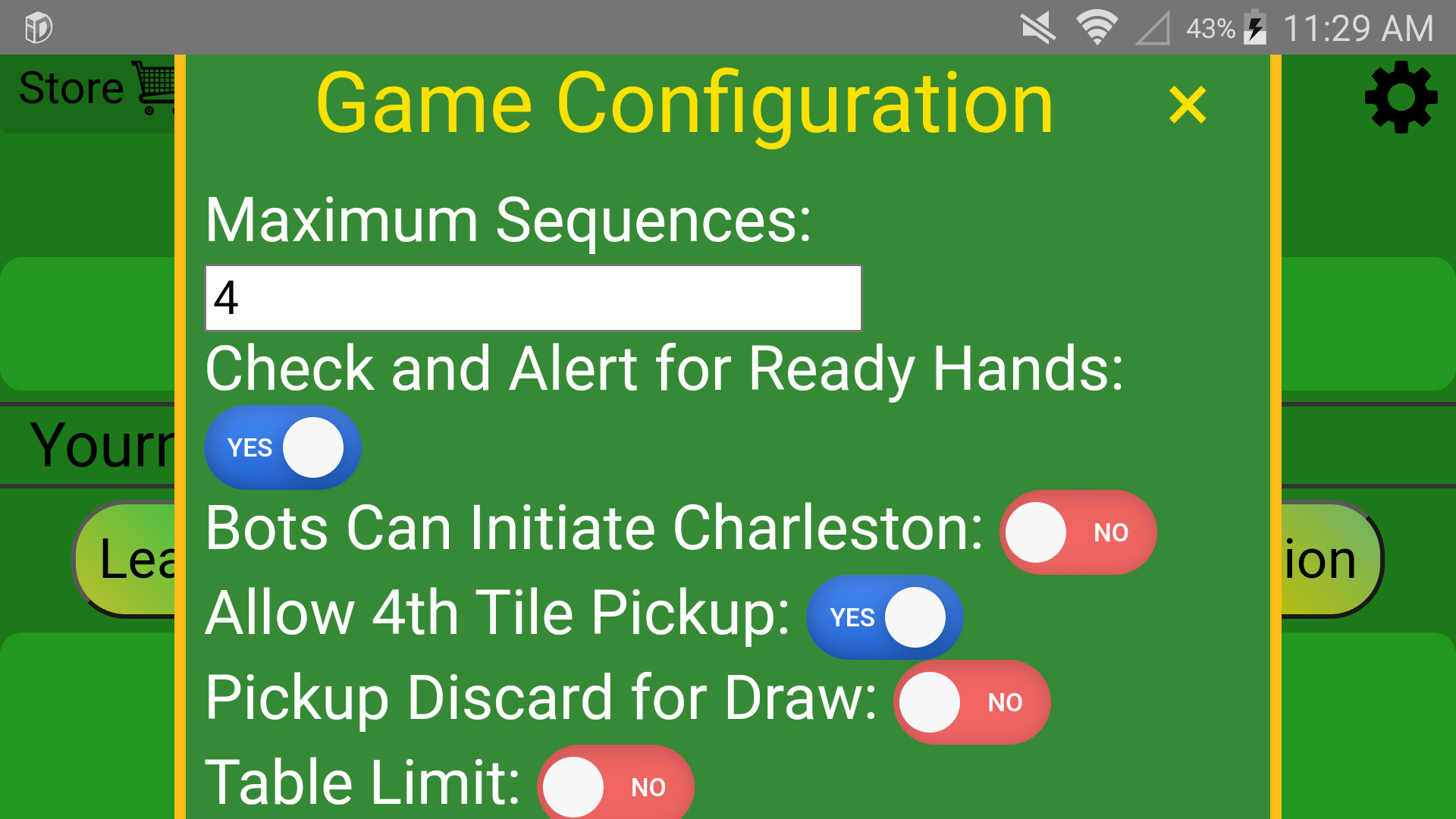
- Maximum Sequences - some rules only permit mahjong hands with 1 chow (sequence of 3) whereas some rules allow hands to contain as many as 4 sequences. By default, Mahjong 4 Friends does not restrict the number of sequences. If you play with sequence restrictions on the number of chows, select the number of sequences allowed.
- Check and Alert for Ready Hands - some rules require a player who is one tile from mahjong to announce they are “calling” or in the “ready state”. By default, when Mahjong 4 Friends detects a bot or another play is one tile from mahjong, you will receive a message warning you the player is calling. You will not see the message when you are calling yourself (you need to know you are calling). If your rule set does not require this notification, just deselect the setting.
- Bots Can Initiate Charleston - some rules use a “charleston” at the beginning of play. A charleston passes tiles between players and typically results in faster and higher scoring games. The decision to charleston is made by East wind. If you are using bot(s), the bot may randomly be assigned as East wind. If play using a charleston, please select this box so the Bot can initiate a charleston (note: American mahjong bots will automatically charleston).
Panama Rules
Panama rules are a fun, fast variant of Chinese Mahjong. This variant combines Chinese style mahjong with an optional (dealer’s choice) 1 round/3 pass charleston and a restriction of one chow. This style results in fast, competitive, high scoring, and fun games. This variant is part of the family history of the Mahjong4Friends developers (originating in the Panama Canal Zone in the 1920s) and as it is so much fun, we named it the Panama Rules and made a preconfigured button with all the settings. Give it a try - we have a number of people adopting the charleston into their Chinese / Hong Kong games.
Using automated bot(s)
If you don’t have four players for a game, mahjong4friends.com has automated bots to play hands for the missing players. Mahjong 4 Friends will automatically add bots when the Start Game button is pressed, or the host can manually add bots:
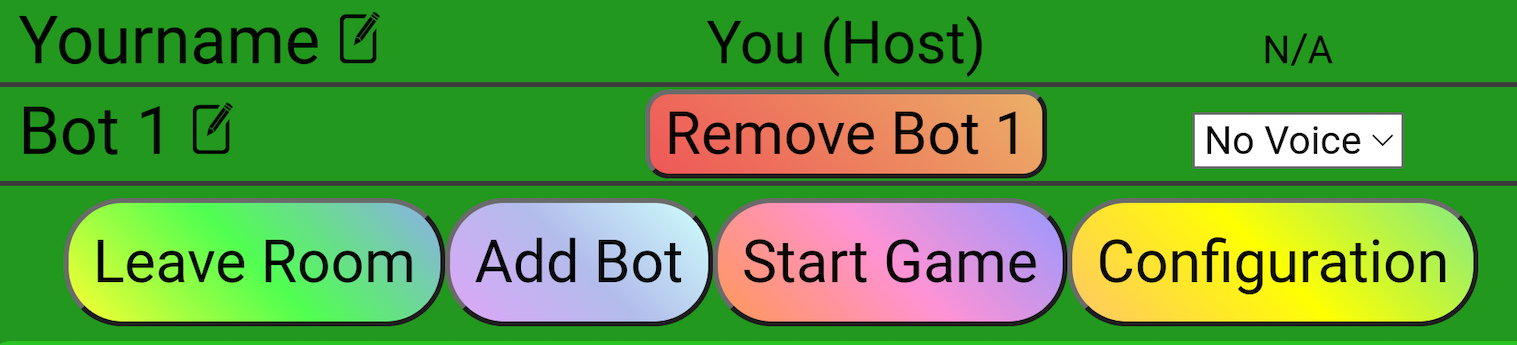
- Click the “Add Bot” button
- (Optional) Configure a voice for the bot so the bot announces discards, pongs, etc
- (Optional) Edit the name of the Bot
- Repeat for additional bots
Note: The bots play very quickly. You’ll get used to it.
Unlimited Ad Free Game Play
Mahjong 4 Friends provides unlimited free gameplay. Pro and Premium subscriptions for ad free play are available in the Store.
From the Mahjong 4 Friends Home screen or Start Game screen,
- Click the “Store” shopping cart icon in the top left corner.
- Scroll through the choices of Premium and Pro subscriptions
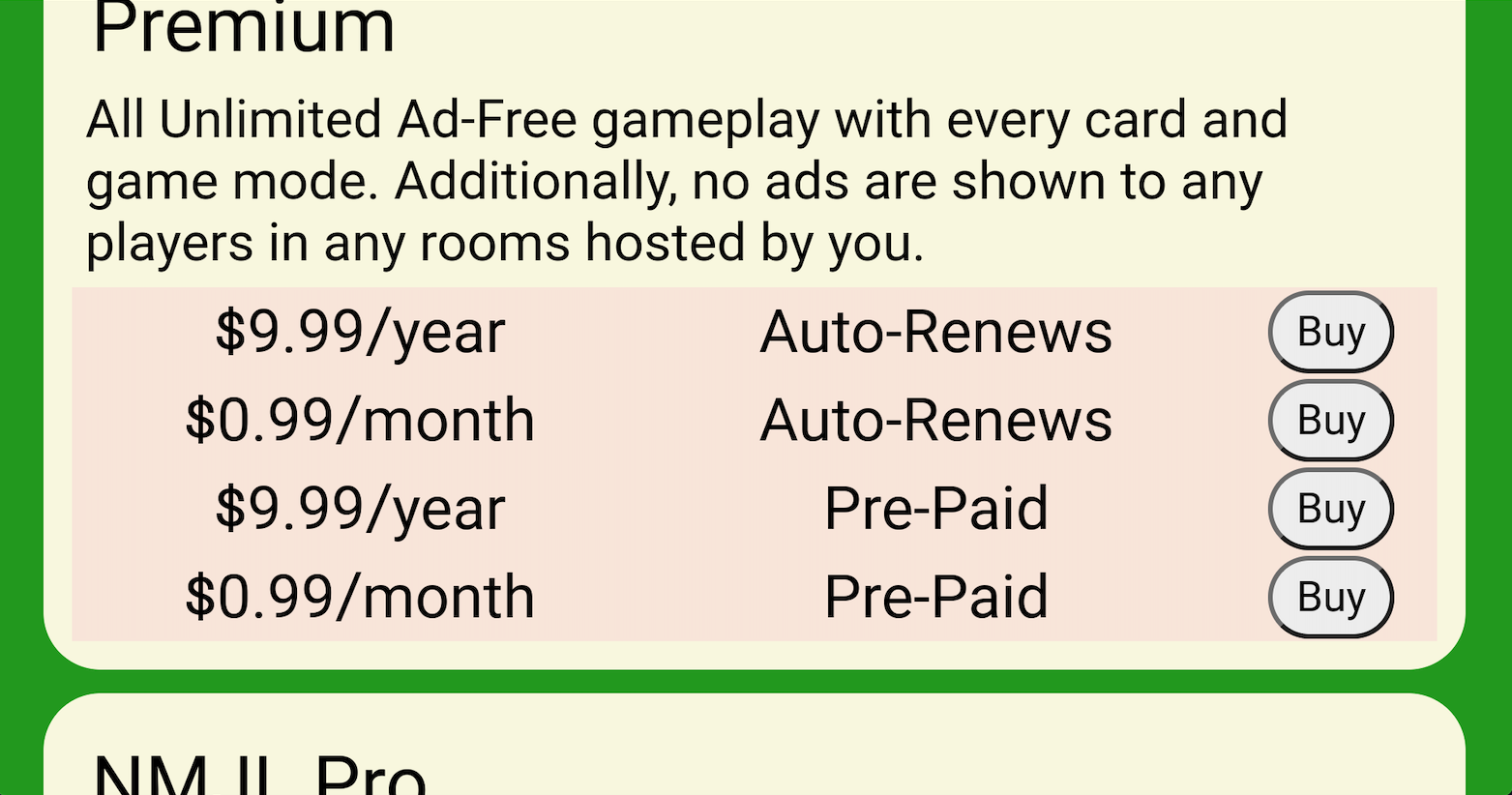
- Click the “Buy” button next to your choice of subscription
- Complete your in app purchase
Ad Free subscriptions options include a Premium option that includes all variants, and provides all players in your game room ad free play, or Pro options for NMJL, Marvelous, or Chinese variants specifically.
Starting a game
Once 4 players (either friends or bots) are in your game room, and settings are configured, you are ready to play a game
- Click the “Start Game” button
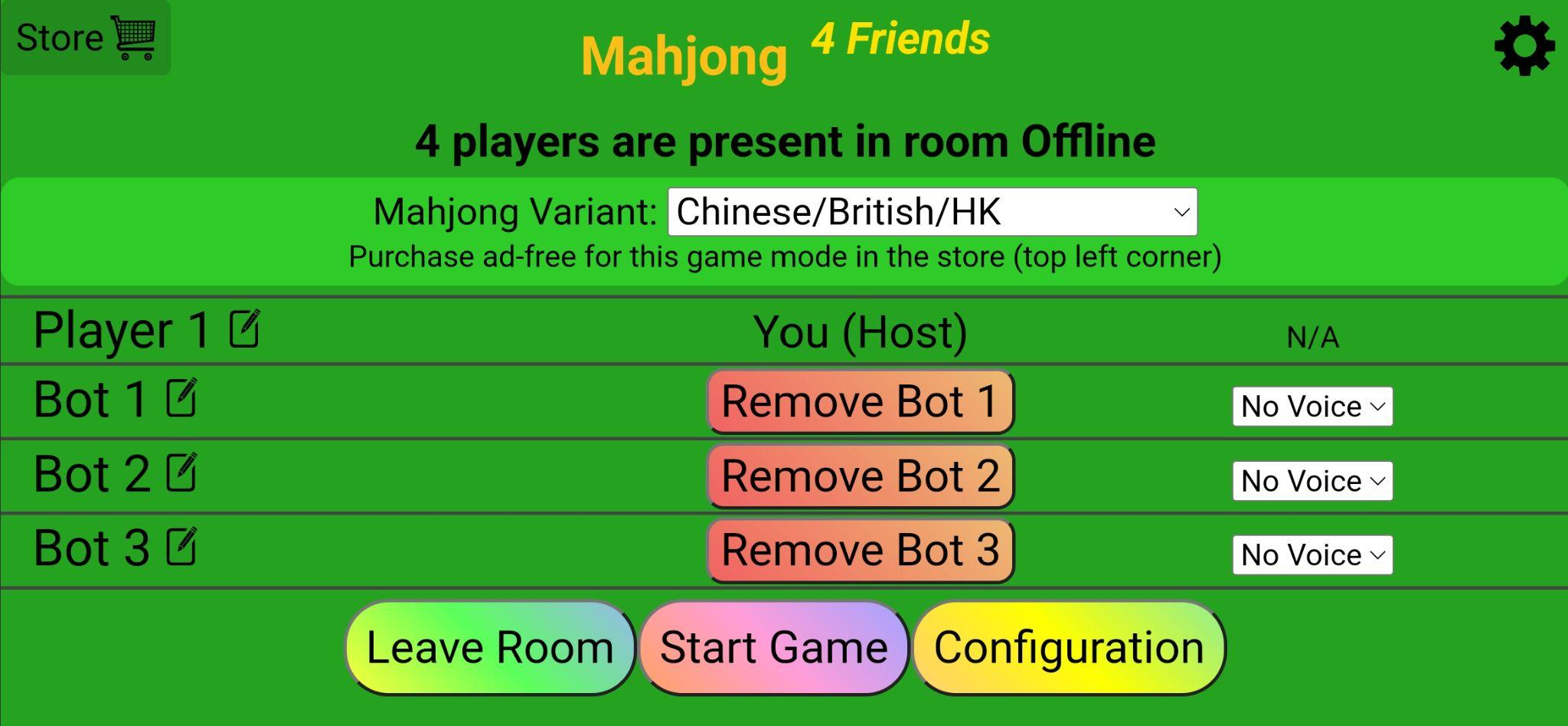
- The wall is automatically built, the tiles are distributed to the players, and sorted into the hands. Players positions are randomly selected and winds assigned. Any pretties are automatically exposed and the extra tiles are drawn. If you don’t usually use pretties, just ignore them. They do not affect your game play since they are automatically exposed and replacement tiles are automatically drawn into your hand.
- East wind has an extra tile (their first draw) and makes the first discard to start playing a game.
Dealing a game
All styles of mahjong follow the same basic flow. A tile is discarded by a player. If no other players choose to claim the tile, play continues to counterclockwise, where the next player picks up a tile from the wall, and discards a tile. The player may also choose to place tiles from their hand (ie an in-hand kong). If a player chooses to claim the discarded tile, they expose their other tiles for the 3 or 4 of a kind or the sequence to claim the tile. Let’s look at how to play using the on-line game.
The tiles
- The source images for most of our tiles are publicly available at http://www.martinpersson.org
Mahjong is played with 144 tiles (Chinese) or 152 tiles (American). There are three suits (circles/dots, bamboos/bams, and characters/cracks), honors tiles (winds and dragons), pretties/flowers, and jokers (American only).
The suits
Each suit has tiles 1-9 and there are 4 of each tile. The 1 and 9 tiles are terminal tiles and are worth more than the minor tiles 2-8. The one bamboo is the most confusing tile - it is a bird. Take a close look at the one bamboo so as not to confuse it with a pretty or a dragon.
Bamboos/Bams:

Characters/Cracks:

Circles/Dots:

The honors
Winds and dragons are honor tiles. The three dragons are red dragon, green dragon, and white dragon. There are four of each dragon. Yes, the white dragon looks like a blank tile. A set (3 of a kind) of dragons doubles your score. The winds are north, south, east, and west. A set of your own wind also doubles your score.
Dragons:

Winds:

The pretties/flowers
The pretties represent the flowers and seasons. Unlike the other tiles, they are singletons. There are a total of 8 pretties - the 1 through 4 of flowers and 1 through 4 of seasons. The numbers map to the playing position (1 is East wind). Pretties do not impact play in Chinese style - when a pretty is drawn, it is automatically exposed and provides additional points. In American mahjong, pretties (called flowers) are treated the same as all other tiles.
Pretties:

Jokers (American only): there are 8 Joker tiles in the American game.
The game board
When a game is started, mahjong4friends.com automatically builds the wall and deals each player 13 tiles. In addition, east wind is dealt its first draw, a 14th tile. For Chinese style, any pretties are automatically exposed and replacement tiles dealt.
The hands
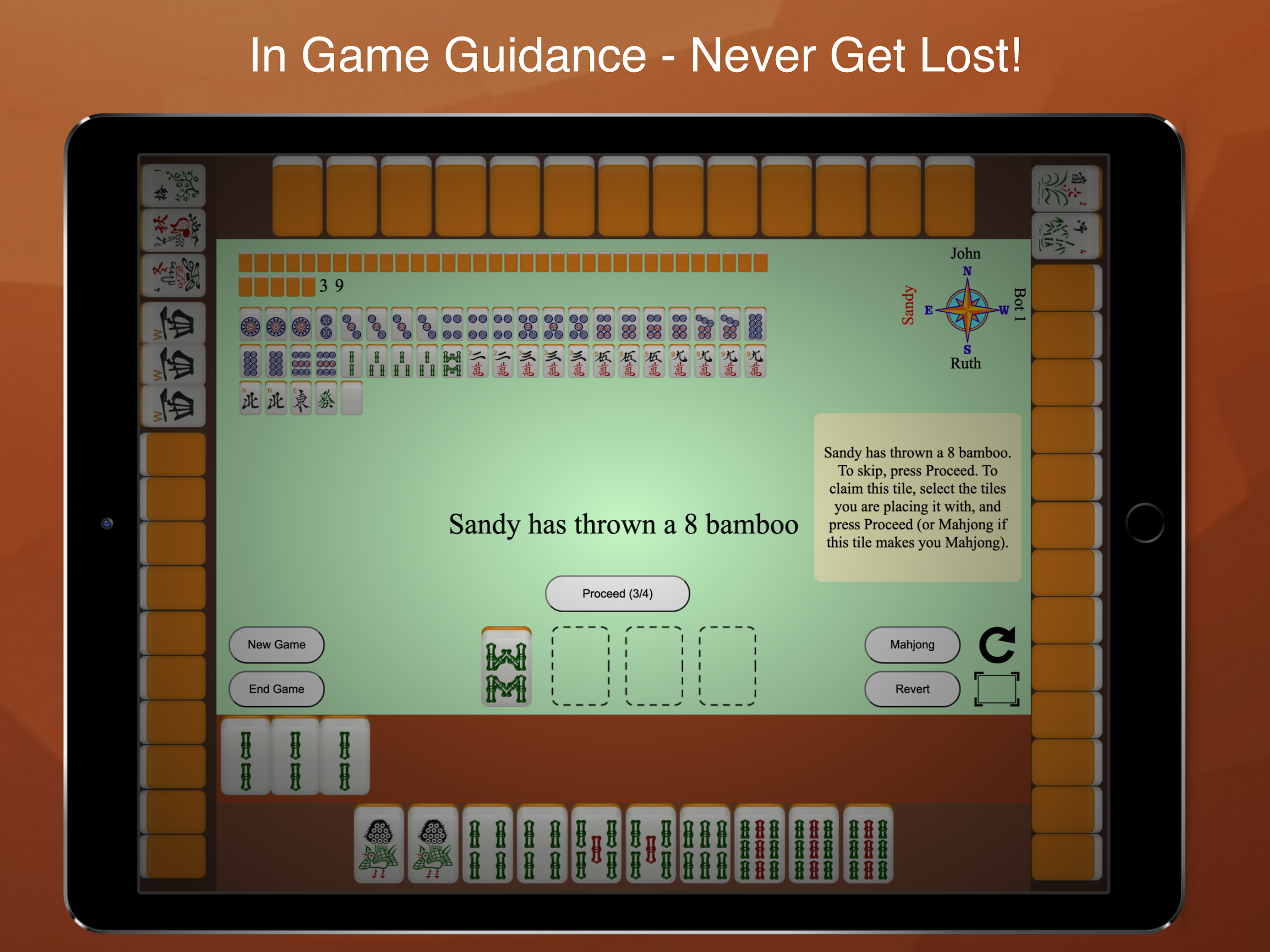
Your hand is always going to display at the bottom of the browser, as shown in Figure 1 below. As you expose tiles, they are shown to you immediately above your hand. The other players hands are shown along the side and top of the browser. As the other players expose tiles, they are shown face up in the same row as the concealed tiles.
The order of play
In the upper right hand corner of the game board are the wind assignments and order of play. They are randomly selected. Your position is always shown pointing down, and the E, S, W, N above your name identifies your wind. Play starts with East wind and proceeds counter-clockwise from E->S->W->N. The tiles in the hand of the player whose turn it is flash.
The play area
In the center of the board is the play area.
The wall
The wall tiles are shown face down with the number of tiles remaining shown. Tiles are automatically drawn from the wall and placed into your hand when it is your turn.
The discard pile
Below the wall, the dead tiles which were discarded and not claimed are displayed. They are displayed face up. They are sorted. Though dead tiles are not usually sorted in a physical game, given the small area on phones and laptops, mahjong4friends.com chose to sort the tiles for on-line usability.
The placemat
Above your hand is the Placemat - 4 dashed tile size boxes (Chinese), or 6 dashed boxes (American). The box on the left is where you drag a tile for discard, and where the most recent tile discarded by another player is displayed. The other spots are where you drag tiles for melding with the discard tile to make pongs, kongs, chows (Chinese only), or the mahjong pairs, and to expose in-hand kongs (Chinese only).
The buttons
There are 4 buttons (all variants), Proceed, Mahjong, Revert, and End Game, plus Joker Swap and Suggested Hands (American only). The Proceed button is used to take action during the game, as well as to indicate you have no play on a tile. Each player must hit the Proceed button before a turn is completed. The Mahjong button is used to declare your hand is Mahjong. The Revert button is used to rollback play to an earlier turn, and the End Game button is used to end the game. Detailed use of the buttons is described in the context of Playing the Game in the next section.
The Instructional bubble
The instructional bubble provides directions and information to help you play the game. Use the information if you are not sure what to do. The bubbles are especially useful during the American Charleston. In addition, the bubbles help keep the game moving. When players forget to hit the Proceed button, the instruction bubble will tell you which player you are waiting on to hit Proceed so you can check with them whether they are still thinking, have connectivity problems, or got distracted. The different Instructional bubbles and their specific meanings are listed in detail later in this document.
Playing a game
Drawing a tile from the wall (video)
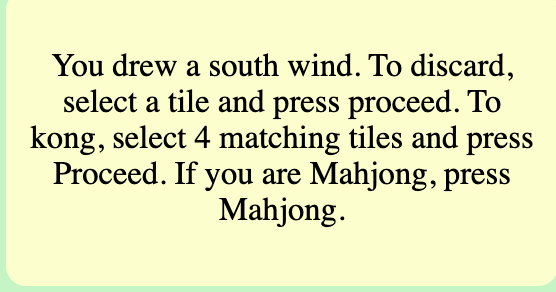
- When it is your turn, a tile is automatically drawn from the wall and placed in your hand. The placement is animated, and the tile drawn is also listed in the Instructional Bubble.
- You receive a message stating the tile you have drawn
- Replacement tiles are also automatically drawn for you when you expose a kong or draw a pretty.
Discarding a tile (video)
When it is your turn, the first tile box in the bar above your hand will flash, and the instructional bubble will contain directions for discarding.
To discard a tile:
- Tap the tile in your hand to move it to the flashing box (shortcuts=q for 1st tile in hand, w for 2nd tile, through f for 14th tile)
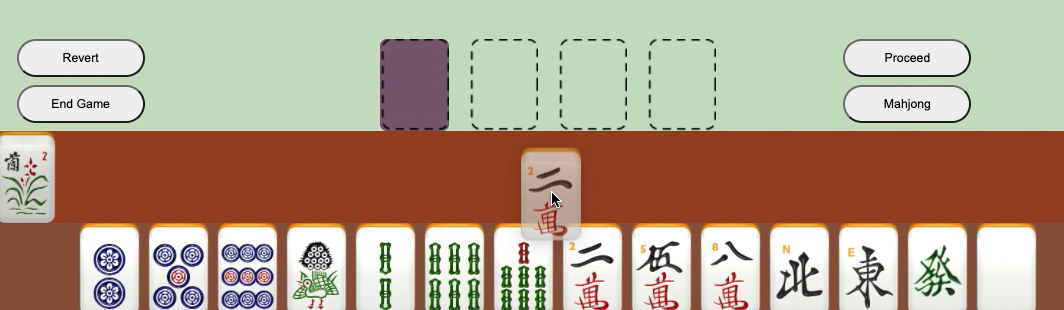
- Click the proceed button (shortcut=space bar)
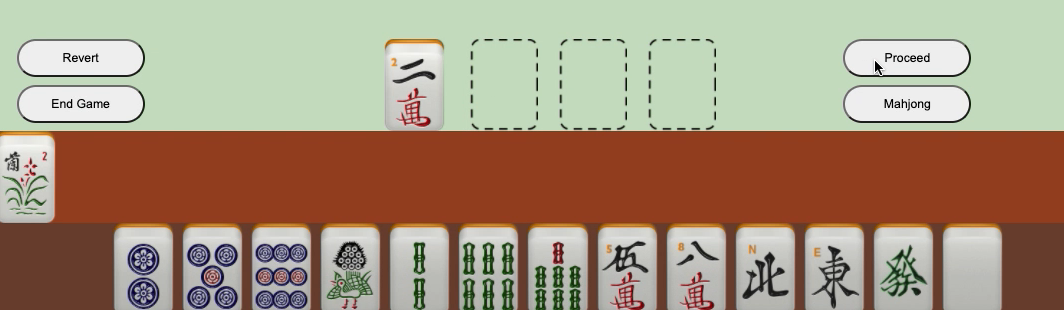
- A message will display on the other players screens that you have discarded a tile
- The tile you discarded displays in the first box above the hand for each of the other players
- ALL players must hit the Proceed button on every turn. If a player does not have a play, they should just hit the Proceed button. If the player can use the tile for a pong, chow, kong, etc, see “Picking up a discarded tile”.
- If none of the players chooses to claim a tile, the discarded tile is added to the discard pile in the center of the board. The turn moves to the next player counterclockwise. This next player will now have a flashing box for discarding, and their hand will be flashing to represent it is their turn.
No play on a discarded tile
When a player discards a tile from their hand, if you have no play on it, you should just hit the “Proceed” button. Play will not continue until all players have hit the Proceed button (or the Mahjong button). The Proceed button will show (Proceed ¼, Proceed 2/4, Proceed ¾) to indicate how many players have already made their decisions.
Picking up a discarded tile
When a player discards a tile from their hand, you have four options:
- Try to take the tile to meld a pong (3 of a kind) or kong (4 of a kind)
- Try to take the tile to meld a chow (sequence of 3 in the same suit).
- Try to take the tile for mahjong (either to complete a pong (3 of a kind), kong (4 of a kind), chow (sequence of 3 in the same suit), or a pair.
- No play - if you have No play - just hit the Proceed button
Melding a pong (video)
In this example, a player discarded an 8 character, as shown in the first box. You have two 8 characters in your hand, so you choose to pong.
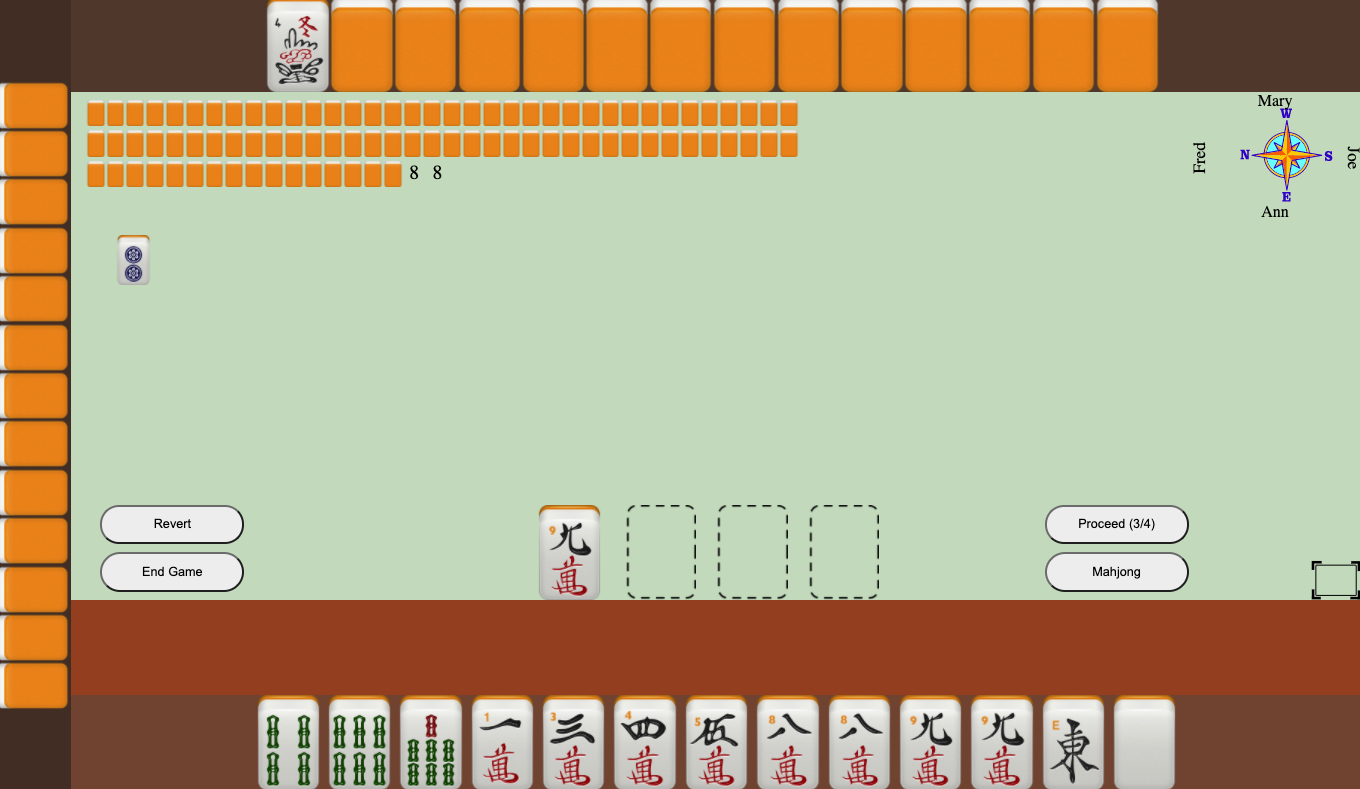
- Tap the 2 matching tiles in your hand to move the to the open spots next to the discarded tile
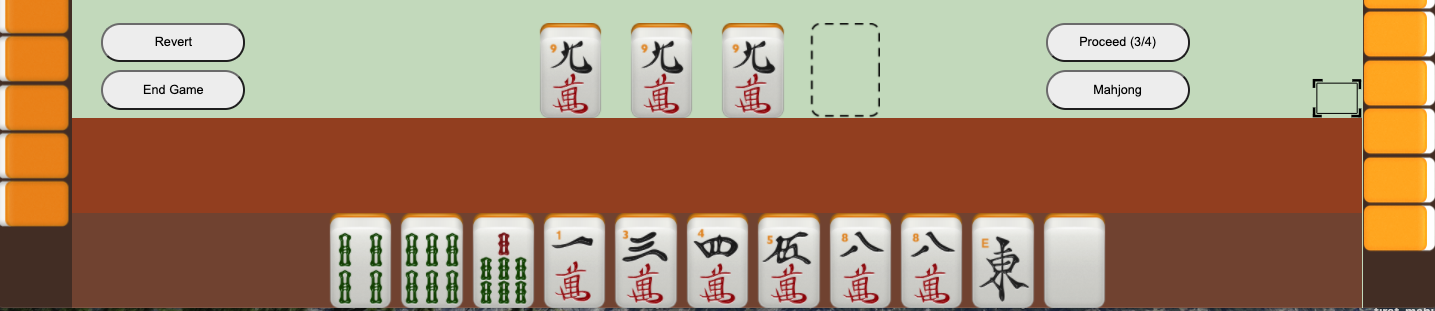
- Click Proceed
- If no other player needs the tile for mahjong, the melded pong will be exposed. You will see it just above your in-hand tiles.
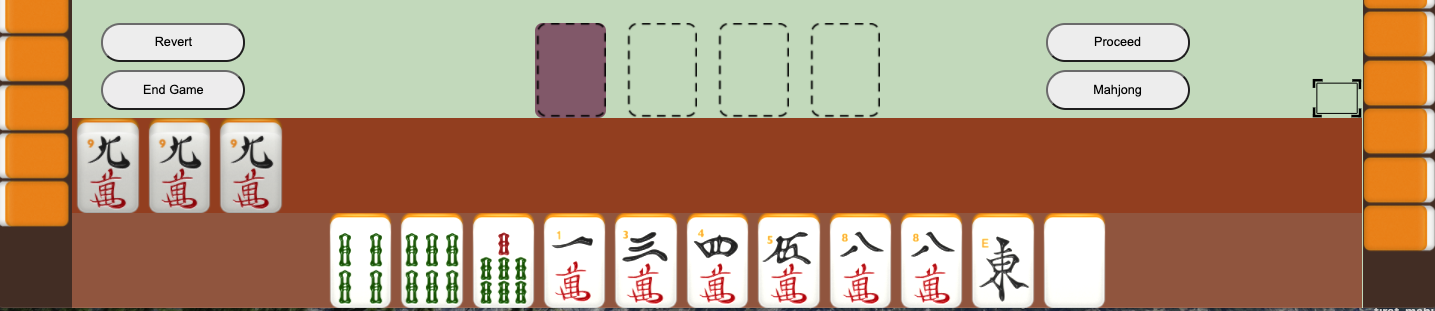
- Other players will see it exposed in their view of your hand along the sides or top of their game board.
- Discard a tile from your hand
Melding a kong (video)
- Tap the 3 matching tiles in your hand to move them to the open spots next to the discarded tile
- Click Proceed
- If no other player needs the tile for mahjong, the melded kong will be exposed and other players can see it.
- You will automatically get a replacement tile drawn for your kong and placed in your hand
- Discard a tile from your hand
Melding a chow (Chinese only)
You can take a discarded tile from anyone to complete a mahjong hand, however, prior to mahjong, you can only take a tile to complete the sequence when discarded by the player immediately before you. You can tell by looking for the flashing hand - it needs to be the player to the left.
In this example, a 1 bamboo is thrown by the player to your left. You have the 2 and 3 bamboo tiles in your hand.
- Tap the 2 tiles to complete the sequence in your hand to move them to the open spots next to the discarded tile
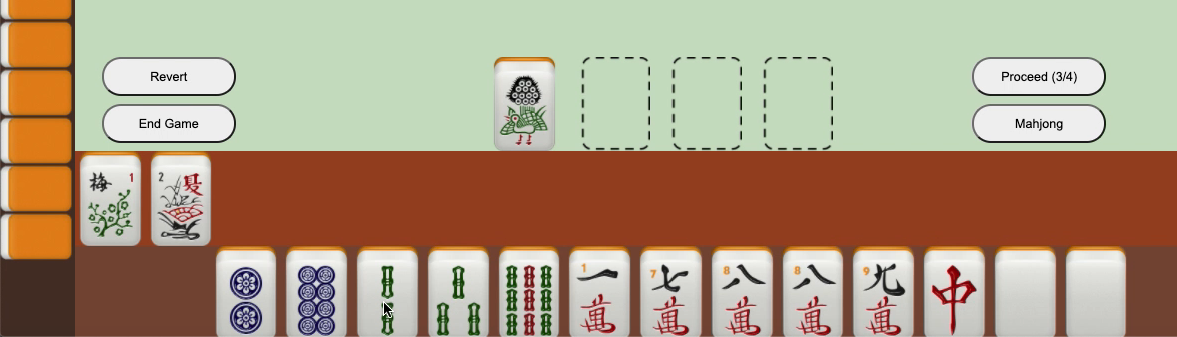
- Click Proceed
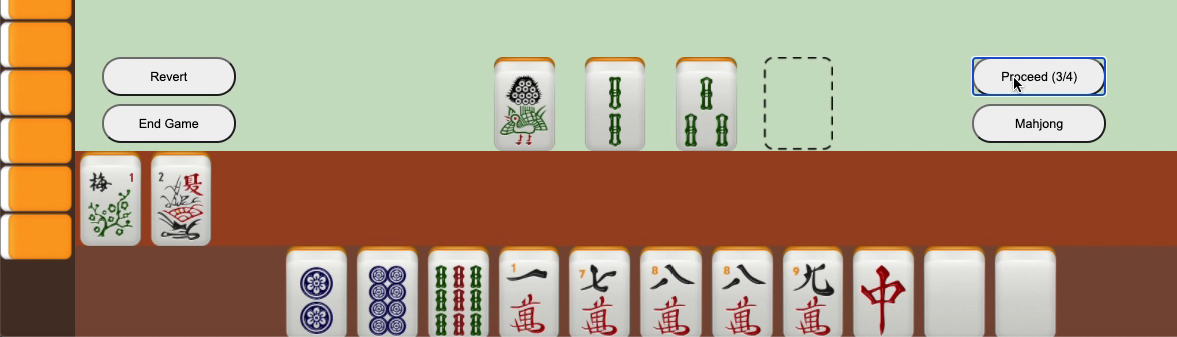
- If no other player needs the tile for mahjong, or to complete a pong, the melded chow will be exposed and other players can see it.
- Discard a tile
- If another player completed a pong with the tile, you will receive an error message. In this case:
- Tap your tiles in the placemat to put your tiles back into your hand
- Other players do not see your tiles, so they will not know you tried to do a chow
Melding an exposed pong to a kong (Chinese only)
If you have an exposed pong, and the player before you discards the 4th tile, you can upgrade the pong to a kong.
- Hit proceed
- The pong is automatically upgraded to a kong
- A replacement tile is automatically drawn into your hand
- Discard a tile
Note: If you would prefer to use the discarded tile as part of a sequence, tap the other two tiles for the sequence prior to hitting proceed. This action will chow the tile, instead of upgrading your pong to a kong.
Exposing an in-hand kong (Chinese only)
If you have an in-hand concealed kong, you must expose this kong so that you get a replacement tile from the wall. When it is your turn, you
- Tap the 4 tiles in your hand to move the kong from your hand to the placemat
- Hit proceed
- You will automatically get a replacement tile drawn for your kong placed in your hand
- Discard a tile of your choice
Upgrading an exposed pong to a kong (video) (Chinese only)
If you have a melded pong and draw the 4th matching tile, you can add the tile to your pong to create a kong. When it is your turn, you
- Tap the tile in your hand to move it to the flashing box (as if you are going to discard it)
- Hit proceed
- The tile is automatically added to your pong to create a kong
- You will automatically get a replacement tile drawn for your kong and placed in your hand
- Discard a tile of your choice
Joker Swap (American only)
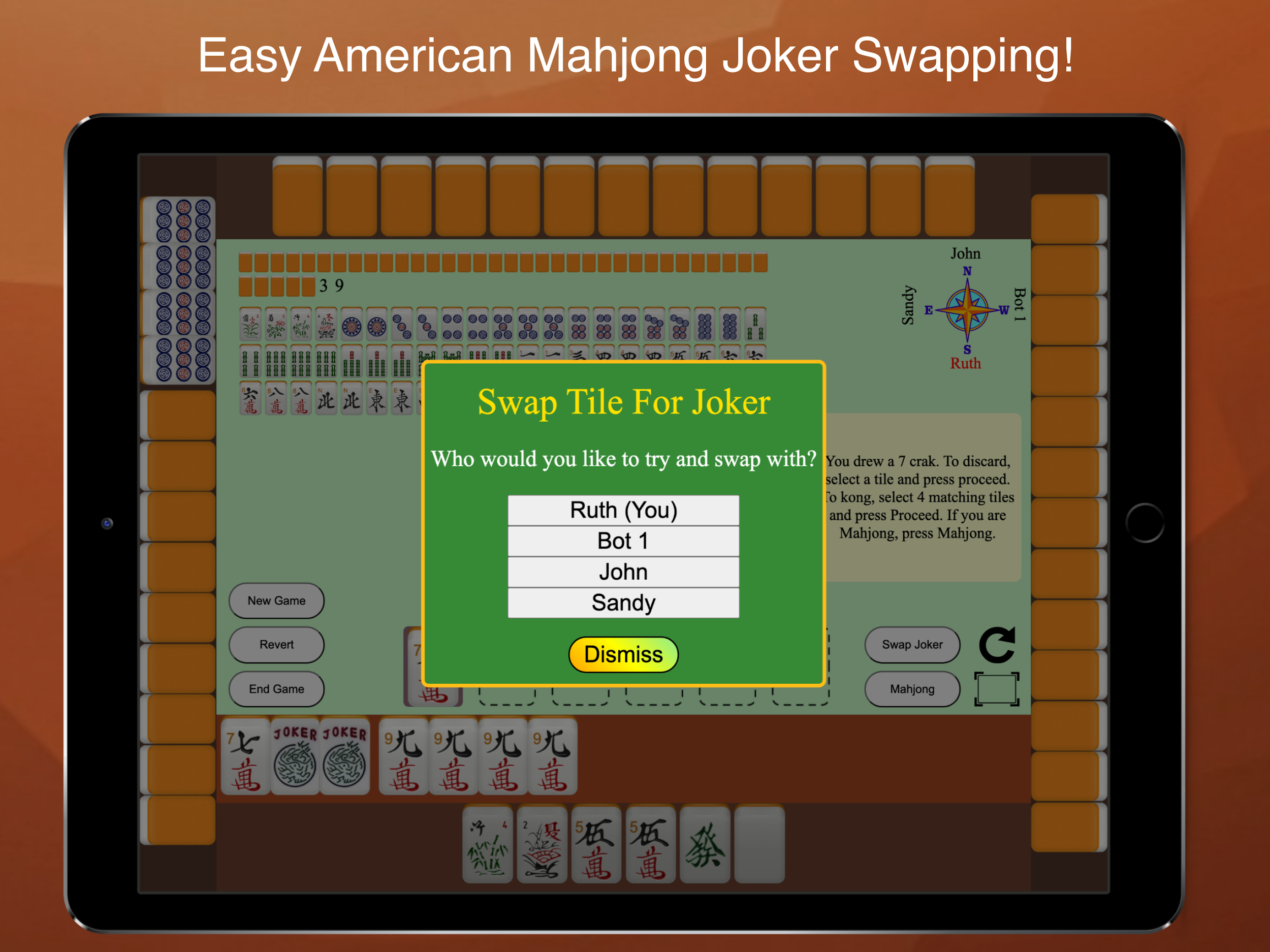
If you have a tile matching your own or another players exposed pong/kong/quint where a joker is currently being used, you can choose to exchange the matching tile for the joker. When it is your turn, you
- Tap the matching tile in your hand to move it to the flashing box (as if you are going to discard it)
- Click the “Swap Joker” button
- Select the name of the hand containing the joker you want to swap with
- The joker is placed in your hand
- Dismiss the message window
- Discard a tile from your hand
Mahjong (video)
A winning mahjong hand has 14 tiles (the last discard is not thrown). The tiles are four sets of 3 tiles (pongs or chows) or 4 tiles (kongs) and a matching pair.
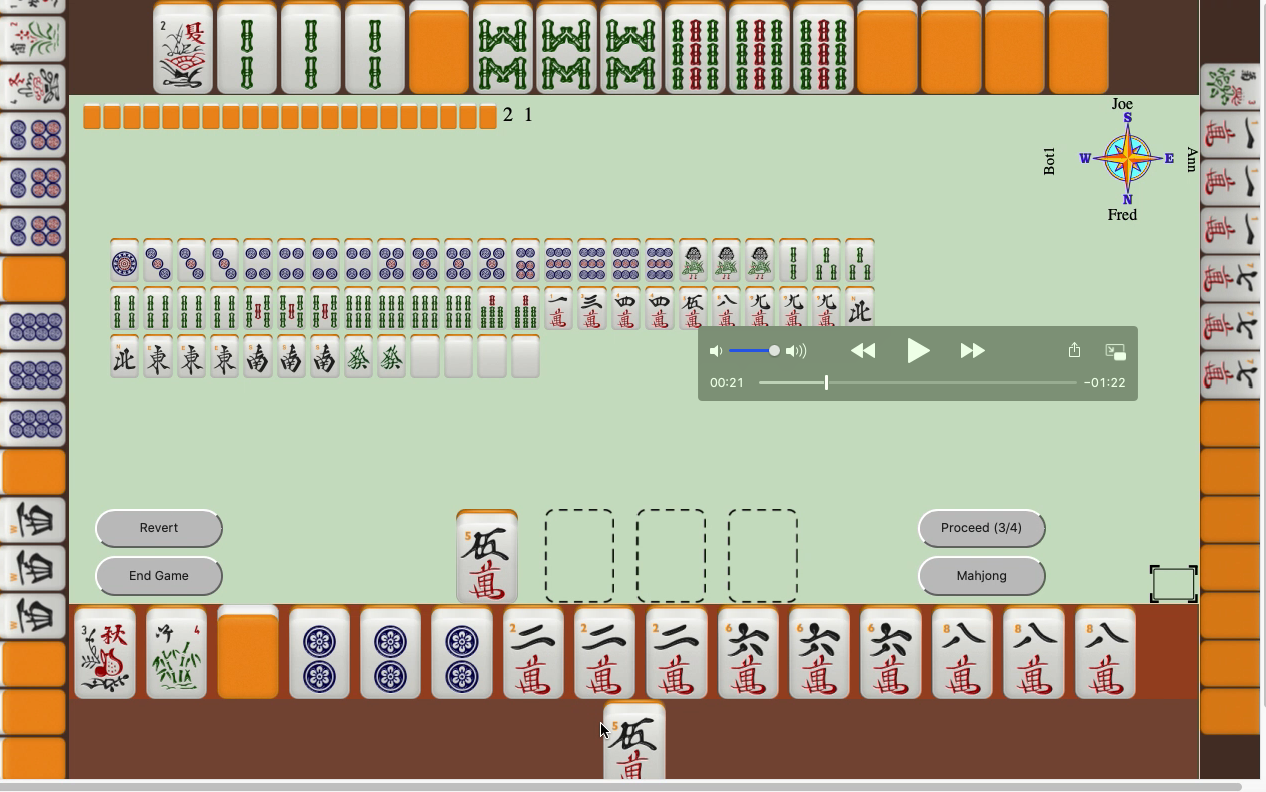
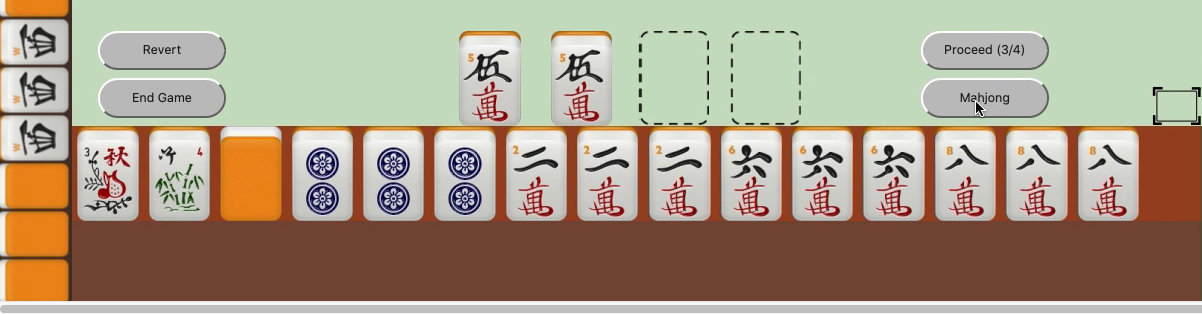
In this example, you have 3 pongs and 1 kong (all melded), and just have a single 5 character remaining in your hand. You are waiting on a 5 character to complete the pair for mahjong. You can either go mahjong by drawing the 5 character from the wall, or picking up the 5 character as a discard. This is called the “Ready” or “Calling” state. There is a Game Setting to control whether Mahjong 4 Friends automatically sends a message to the other players when a player or bot enters the Ready state. The player who enters the Ready state is not notified.
If you draw your own mahjong tile, skip step 1 below, and go directly to step 2, hit the mahjong button. Otherwise:
- Tap the matching tiles in your hand to move your them to the placemat. Note: if you draw your own Mahjong tile you do not need to move any tiles - just skip directly to step 2 and just hit the Mahjong button)
- Hit the “mahjong” button (shortcut = shift spacebar).
- The program will verify that your hand is mahjong and display your winning and hand and all the other hands to all players. Scoring is applied, though if your scoring rules are different, you can score the hands following your rules at this point.
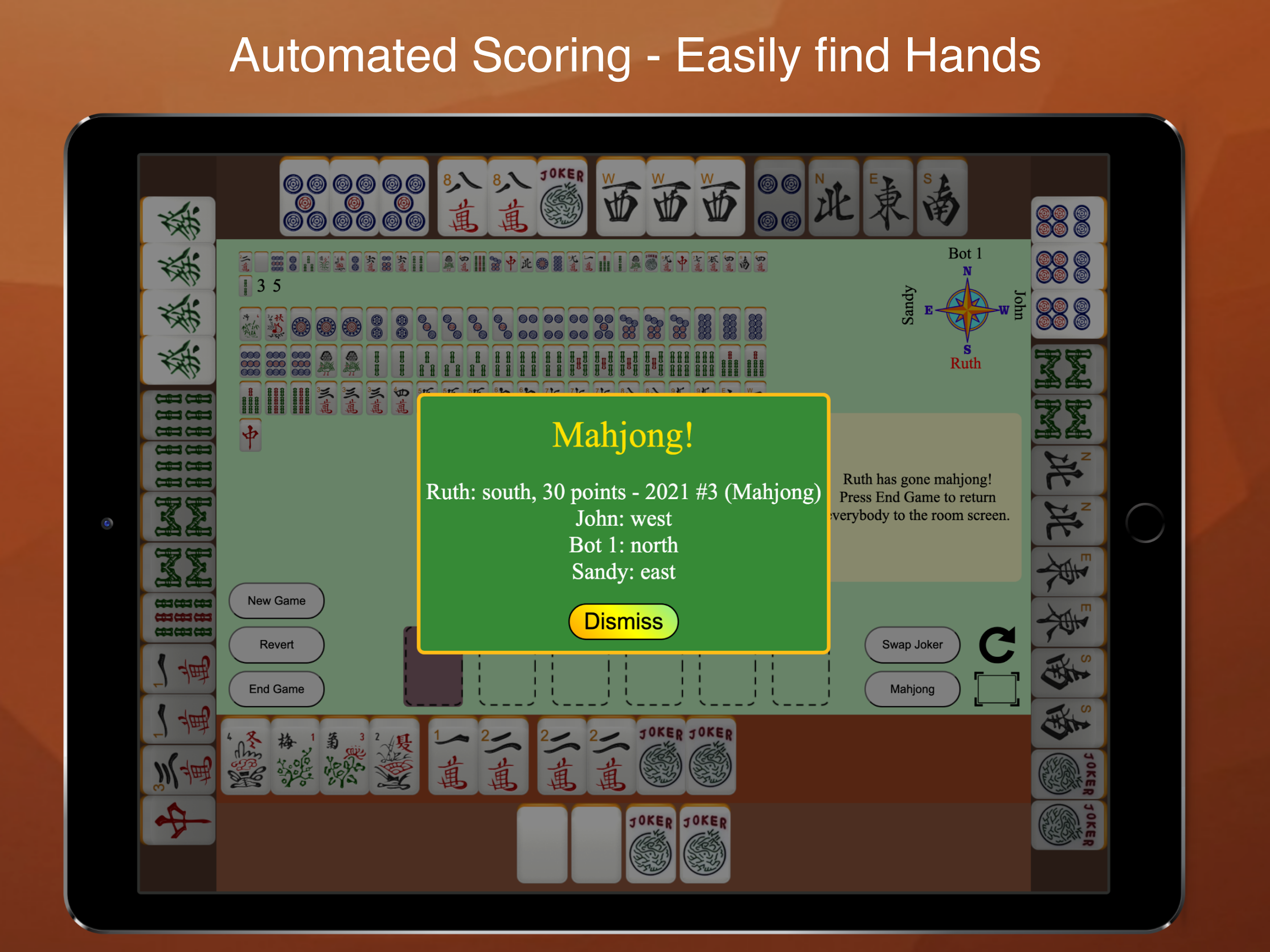
For Chinese/British/Hong Kong style only, if your hand is mahjong, but the software gives you an error, you can “override” the mahjong checking to claim your mahjong. To do this, just hit the “mahjong” button again. Overrides may be required if you play with special hands or different rules that the program doesn’t yet recognize.
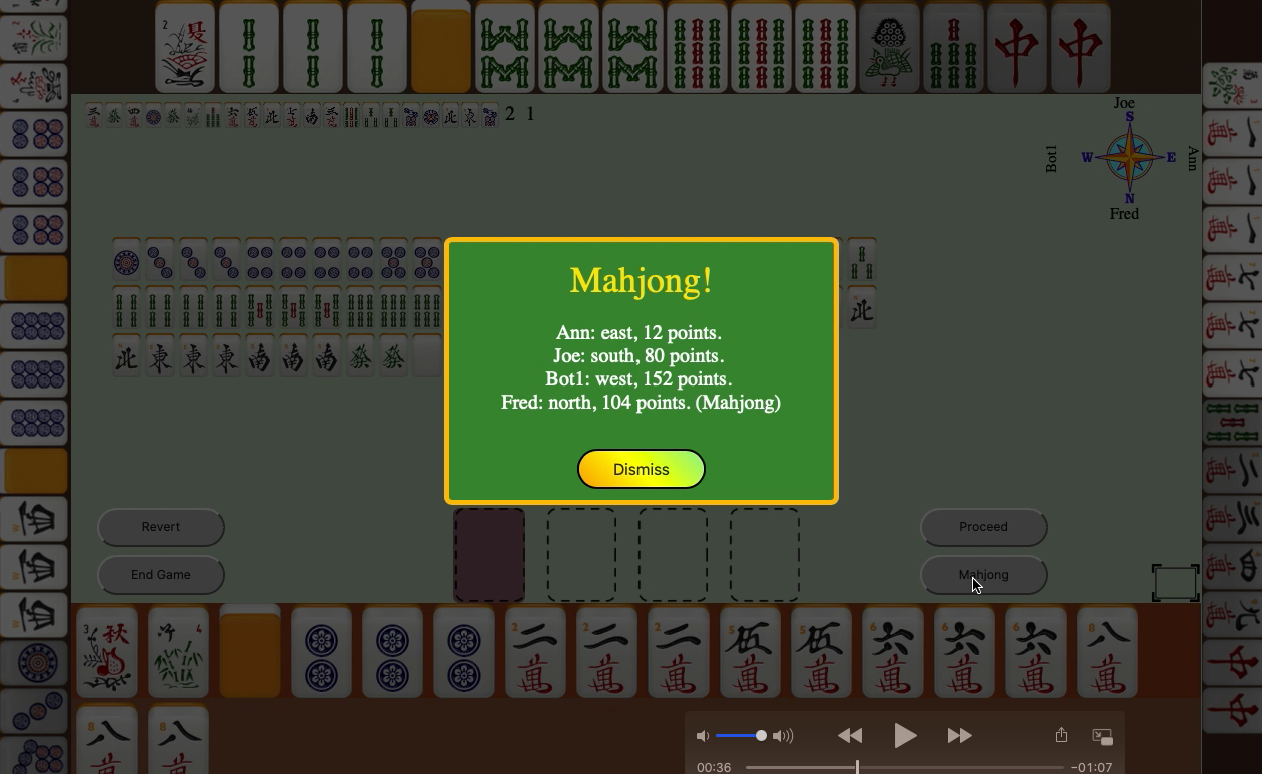
If a person incorrectly overrides a mahjong declaration, you can use the “Revert” button to revert to Mahjong declaration and continue play.
Doing a Charleston (video)
A fun addition to a traditional game of mahjong includes “doing a charleston” prior to the first discard. A charleston passes tiles between players and typically leads to faster games and higher scoring hands. Mahjong 4 Friends supports Charlestons for both American and Chinese/Hong Kong/British styles. The American charleston is automatically started at the beginning of the game, and follows the NJML charleston rules.
Mahjong 4 Friends (Chinese styles) provides an option for a 1 round charleston which consists of passing 3 tiles, first to the right, then across, and then to the left. The decision to charleston is made by East wind, prior to the first discard. We find a charleston a really fun addition to the Chinese/Hong Kong/British styles. If you are going to charleston, you may want to consider restricting hands to 1 chow/sequence. The limit of 1 chow, combined with the charleston leads to fun with powerful clear hands battling against players trying to go out quickly.
For either Charleston, the tiles to exchange are tapped into the placemat and then the Proceed button is pressed. The tiles from the other player are then put in the placemat, and can be tapped to moved into your hand. This continues for each round - tap the tiles to exchange and hit Proceed, and tap the tiles you want to keep back into your hand. The last round the tiles are automatically put into your hand. East wind plays the charleston with 14 tiles, and discards after the completion of the charleston.
To charleston (single round for Chinese/Hong Kong/British styles):
- East wind taps 3 tiles to move them to the placemat area (instead of 1 tile) and hits “Proceed” to initiate the charleston
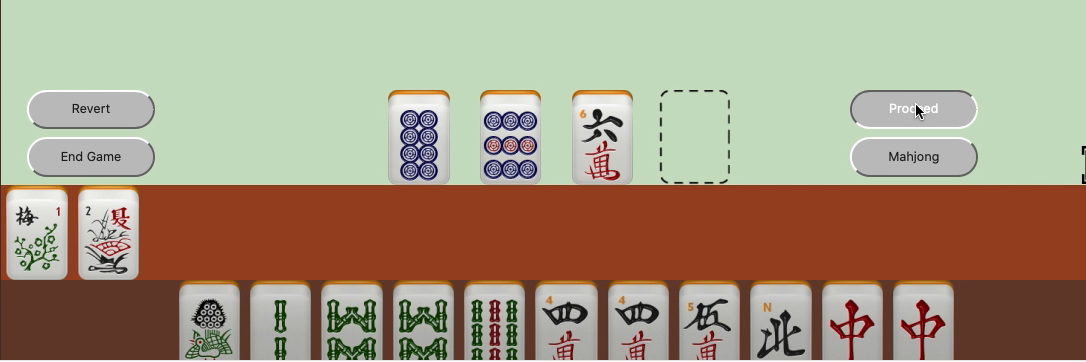
- All players receive a message that a Charleston has begun and the direction of the pass
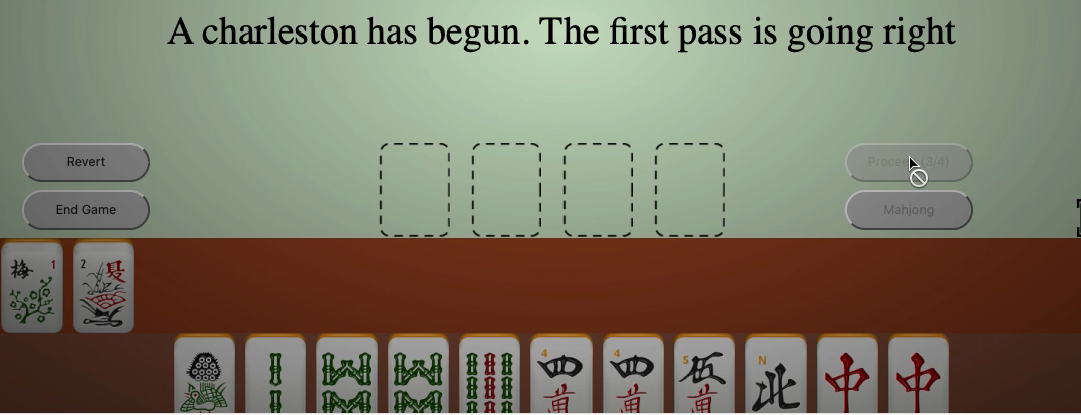
- All other players tap their 3 tiles to move into the placemat above their hand and hit “Proceed”
- The tiles in the box are replaced by the tiles passed to you
- Tap the tiles you want to keep to move them into your hand (shortcut = 1 for 1st tile, 2 for 2nd tile, through 4 for 4th tile)
- Tap 3 tiles for the second pass and hit “Proceed”
- The tiles in the box are replaced by the tiles passed to you
- Tap the tiles you want to keep to put them into your hand
- Tap 3 tiles for the last pass and hit “Proceed”
- The 3 tiles from the final round are automatically placed into your hand and the charleston ends
- East wind makes the first discard and play continues as normal
To charleston (American) - follow the Instructional Bubbles.
- To exchange tiles, tap 3 tiles to move them to the placemat area and hit “Proceed”.
- To keep tiles, tap the tiles from the placemat to move them into your hand
- Continue tapping tiles to exchange and hitting Proceed. Carefully follow the Instructional Bubbles as some rounds you have the option to skip block by just hitting “Proceed” and some rounds you have an option to pass less than 3 tiles.
Instructional Bubbles
- Drawing and Discarding a tile
Scoring
Mahjong 4 Friends automatically scores the hands and pops up a message box with the scores. You can click on your own exposed hand or on any of your opponents hands to get a detailed breakdown of the score. If you use a different method of scoring, simply dismiss the box and score the hands yourself (they are all exposed to you).
Mahjong 4 Friends Chinese/Hong Kong/British and Panama Rules default scoring is as follows:
| tiles | Melded (exposed) points | In-hand (concealed) points |
|---|---|---|
| pongs (suits #2-#8) | 2 | 4 |
| pongs (suit #1 or #9, winds, dragons) | 4 | 8 |
| kongs (suits #2-#8) | 8 | 16 |
| kongs ((suit #1 or #9, winds, dragons) | 16 | 32 |
| chows (sequence) | 0 | 0 |
| pairs (suit #1 or #9, players own winds, dragons) | 2 | 2 |
| pretty | 4 | n/a |
Mahjong points
- 20 points for mahjong
- 10 additional points for no chows (sequences)
- 2 points for drawing your own mahjong tile
Doubles
- Clear hand (all one suit (characters, circles, bamboos or all #1s and #9s mixed suits) plus honors (winds, dragons)
- Pong or Kong of dragons
- Pong or Kong of players own wind
- Pretty of players hand (east=1, etc)
- Three doubles - Clear hand with no honors (all one suit (characters, circles, bamboos, or all #1s and #9s mixed suits) with NO winds or dragon)
For example, the score of the following mahjong hand is 88 points:
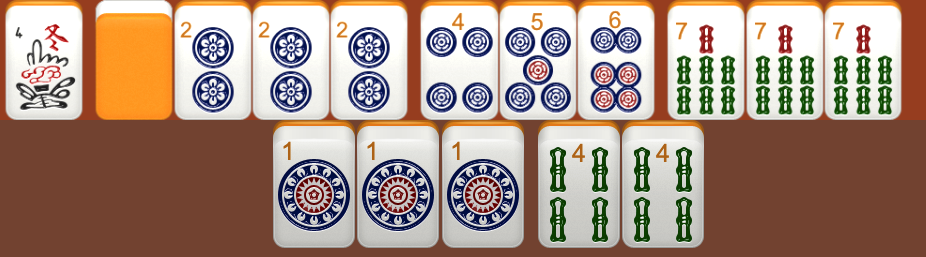
If you click on the top row (the exposed tiles), the scoring breakdown is provided:
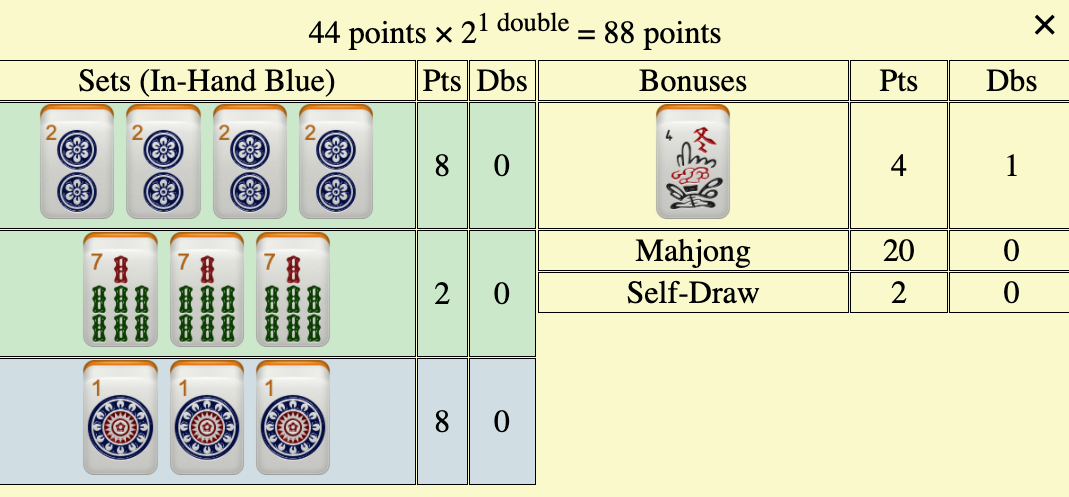
| tiles | Melded (exposed) | In Hand (Concealed) | Total points |
|---|---|---|---|
| pongs (suits #2-#8) 7 bamboo | 1 pongs x 2 points | 0 | 2 |
| Pongs (suits #1 / # 9) | 1 pong x 8 points | 8 | 8 |
| Kongs (suits #2-#8) 2 circle | 1 kong x 8 points | 0 | 8 |
| Chows (sequence) | 1 | 0 | 0 |
| Pretties #4 (own pretty) | 1 pretties x 4 points each | n/a | 4 |
| Mahjong | 20 | ||
| Self-Draw | 2 | ||
| Total without doubles | 44 points | ||
| Doubles | 1 double for own pretty | 44 x 2 | |
| Total | 88 points |
Room Totals
Mahjong 4 Friends calculates cumulative Room Totals across games within a Game Room. These totals are maintained until the Game Room is closed. If the “History” button is used to replay a game the totals are reset.
Net Totals - American style
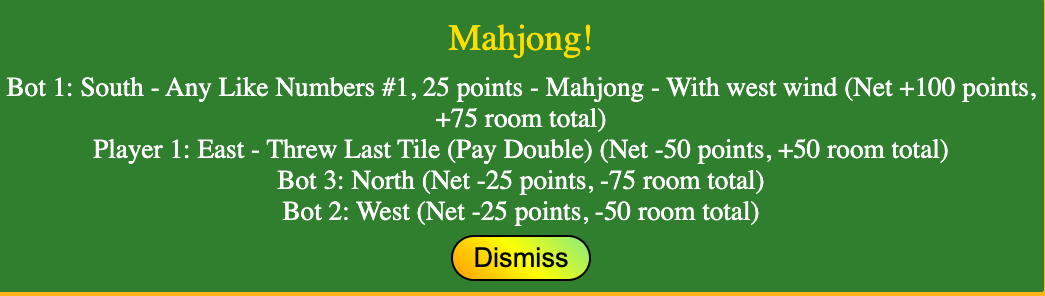
The cumulative totals for American style Mahjong are based on the points per hand. For example, the Player who wins a 25 point hand gets 25 points from each of the other players and an additional 25 points from the player who threw the last tile. Therefore, as shown below, Player 1 nets 100 points, and the other players either are -25 or -50.
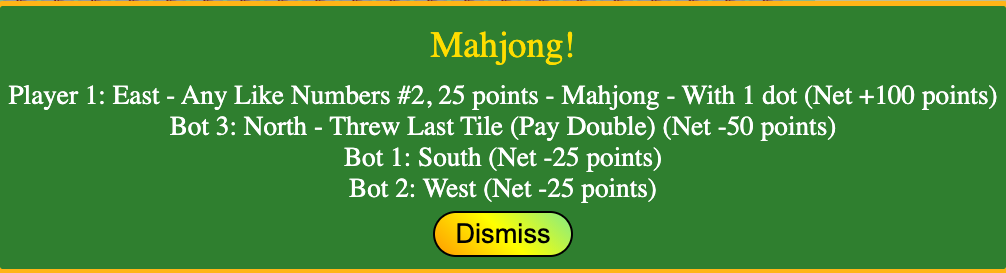
After the second game, the cumulative totals are updated as shown below. Bot 1 won the second game and netted 100 points, therefore Bot 1’s cumulative total is -25+100 = 75 points. Player 1 who won game 1 but threw the last tile in game 2 is now at 50 (100-50).
Net Totals - Chinese styles/Panama Rules
Net Scoring Example:
| South - mahjong | North | West | East (doubled) | |
|---|---|---|---|---|
| Hand points | 60 | 100 | 50 | 75 |
| Mahjong net | 60+60+60x2=+240 | -60 | -60 | -120 |
| Differences net | n/a | 50+50=100 | -50 + -50 = -100 | -50 + 50 = 0 |
| Total net | +240 | +40 | -160 | -120 |
Process:
- Score the mahjong hand
- All players “pay” the mahjong hand amount
- East wind “pays” the mahjong hand double
- If the mahjong hand is East wind, all players pay East double
- Payout to Mahjong hand is 60 from North plus 60 from West, and 60x2=120 from East for 240 to South.
- Score the non-mahjong hands
- Calculate the difference between the non-mahjong hands. Double East
- North to West 100-50 = +50 for North, -50 for West
- North to East (100 -75) x 2 = +50 for North, -50 for East
- East to West (75-50) x 2 = +50 for East, -50 for West
- Non-mahjong hands pay each other the differences. Add difference together.
- North: +50 + 50 = +100
- West: -50 + -50 = -100
- East: -50 + 50 = 0
- The mahjong hand never pays. Every player “pays” the mahjong hand - even if the other hands have more points. Only the three non-mahjong hands pay the difference in scoring. Totals are the payout to the mahjong hand plus the difference between the hands.
- Totals
- South mahjong = 240+0=240
- North -60 + 100 = +40
- West -60 + -100 = -160
- East -120 + -50 + 50 = -120
- If no player goes mahjong, the point difference between all four hands is calculated.
Buttons
Proceed Button (shortcut = spacebar)
The Proceed button is used to take actions (ie discard tiles, meld pongs, etc). The Proceed button is also used to indicate that you do not have a play on a tile. Each player must hit the proceed button before a turn completes. There is a visual indicator (ie Proceed ¾) to indicate players who have made their decision on the tile. This way you know if one of your players is distracted and not engaged in the game.
Mahjong Button (shortcut = shift spacebar)
The Mahjong Button is used to declare Mahjong. The on-line game will verify that the hand is actually Mahjong and then end the game. Depending on your rules, you may see a message that
History Button
The History Button can be used if a player inadvertently discards a tile or some other mistake occurs. The History Button brings up an ordered list of the plays in the game. Just select the turn to return to, and the game starts again from that position. This button shouldn’t be used very often, if ever, but it’s there if you need it.
Suggested Hands Button (American Only)
This button displays an ordered list of Suggested Hands to consider based on your current hand. These are just suggestions based on analyzing your current hand. Discarded tiles are not factored into the Suggested Hands list, so the hands may not be possible. Possible Hands that your opponents may be playing are also available by clicking on the tiles of your opponents’ hands’.
End Game Button
This button is pushed to end the game. Typically, this button is used after a game is completed, but a game can also be ended sooner. For example, if you start playing with a Bot and then your 4th player is ready, you can end the in progress game and start a new game with the 4th player. A confirmation screen does pop up to ensure that games aren’t accidentally ended.
Shortcuts
Proceed Button
The shortcut for the proceed button is the spacebar
Mahjong Button
The shortcut for the mahjong button is shift spacebar
Move tiles from hand to placemat
Note: Tiles can now be tapped instead of drag/drop so these shortcuts are less useful. However, they still work. The shortcuts for moving tiles from the hand to the placemat to discard, pong, chow, etc are q through f, where q will move the 1st tile in hand into the placemat, w moves the 2nd tile in hand to the placemat, through f to move the 14th tile in hand)
Moving tiles from the placemat to your hand
Note: Tiles can now be tapped instead of drag/drop so these shortcuts are less useful. The shortcuts for moving tiles from the placemat into your hand are the numbers 1 through 4 where 1 will move the 1st tile in the placemat to your hand, 2 will move the 2nd tile in the placemat back into your hand, through 4 to move the 4th tile in the placemat into your hand)
Using Alternative Rules
There are many different styles and rules for mahjong. Mahjong4friends.com is designed to support different variations of traditional game rules (4 sets of 3 or 4 plus a pair). Settings and override functions are provided to accommodate these various different rules. Please contact Contact support for help if your particular rule set is not currently accommodated.
Sequences
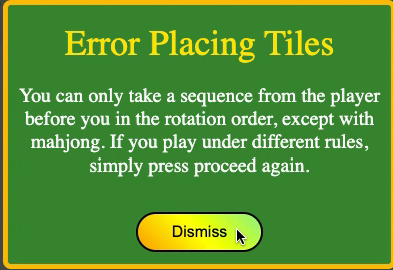
Some styles allow for unlimited sequences; whereas, other rules limit hands to only one sequence. A setting is provided to select which of these two rule sets to enforce. Both these rule sets require a melded sequence to be melded from the player immediately preceding you, except in the case of mahjong. An override capability (hitting the proceed button twice) is provided if your rule set allows the option to meld a sequence from any player.
Special Hands
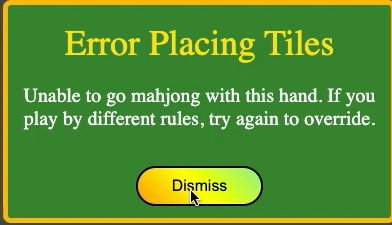
There are some special hands which are not currently recognized (ie 13 orphans, or 7 pairs) as valid mahjong hands. If you try to go mahjong with a special hand that is not currently recognized as a valid mahjong hand by mahjong4friends, you will receive an error. Assuming your friends will agree that your hand is mahjong, use the override feature (hit the mahjong button again) to declare the win, and score the hand following your own scoring.
Overriding error checking
The override feature is provided to accommodate alternate styles of play. If a player attempts to do something outside the programmed rules of the game, an error is displayed. If your rule set allows the action, the player can override by hitting the same button again. The following overrides are currently available:
- Override Mahjong check - when a player hits the “Mahjong” button, mahjong4friends.com verifies the hand is mahjong before scoring and displaying all the tiles. If you play with special hands that mahjong4friends.com does not currently recognize as mahjong (for example if you allow mahjong with 7 pairs or 13 orphans), then the player should dismiss the error and hit the Mahjong button again.
- Override Sequence check - mahjong4friends.com restricts the melding of a sequence to the player directly next in the play order, except for mahjong. If you play with more flexible rules, then the player should dismiss the error and hit the Proceed button again.
Using a different scoring algorithm
All the hands are displayed after a player goes mahjong. To use an alternate scoring algorithm, just close the Scoring message and score the hands using the algorithm of your choice.
American Mahjong
American mahjong can be played with either the NMJL 2020 or 2021 card, or the 2021 Marvelous card.
Troubleshooting
Step 1: Reload the page in your browser
If you encounter a problem (ie game appears frozen), the first thing to do is hit the Reload button of your browser, or the Reload button in the game. You can also close and reopen the app. You will not lose anything, and this usually fixes the problem.
Step 2: Use the History button
The History button in Mahjong 4 Friends allows you to back up multiple turns and replay. This may alleviate the issue.
Step 3: Report the problem
If you continue to experience the same problem, please use Contact support. We will need your roomname and a description of the problem, as well as the time you closed the room (please include your timezone). If you are playing offline, please Download the file for the game and email it to us. In offline mode, the “sync” button brings up the Download menu.
You can continue to play, start new games, create new rooms, etc - it should not affect our ability to investigate your problem.
Questions and Requirements
For additional questions or to request new features, please visit the Mahjong 4 Friends Facebook page or use Contact support.